


You know the look you're after, but explaining it in a message is another matter. “Warm,” “bold,” and “a bit more editorial” can mean something different to everyone reading the brief. A few well-chosen images can get the conversation much further.
Putting them together should be the easy part. You might want a loose collection that grows as you find references, a tidy board to send to a client, or something you can leave open beside your drawing app. It's worth choosing a tool that suits the way you'll actually use the board.
Here are five moodboard tools we'd put on that shortlist. We look at collecting images, adding context, sharing a direction, and—in Quickmake's case—continuing into the design itself.
The shortlist
| Tool | Choose it for | Main consideration | Pricing |
|---|---|---|---|
| Quickmake | Developing references into original visuals and layouts | Check included AI credits | Current plans |
| Milanote | Collecting and sharing a creative brief | Free item allowance | Free and paid plans |
| PureRef | Keeping image references beside your drawing or 3D app | Desktop use and license category | Personal and commercial licenses |
| FigJam | Discussing visual directions with a Figma team | FigJam and Figma Design editing are different | Free and paid seats |
| Miro | Keeping the board inside a larger team project | Board limits and participant access | Free and paid plans |
1. Quickmake — keep the references beside the design

A moodboard is usually the beginning of a design project. You still need to make the images, write the copy, and put the layout together. We built Quickmake to keep those steps in the same workspace.
You can arrange a brief and references in Think mode, then switch to Design mode to compose the work. The AI agent can help create images, video, and copy; frames, layers, and typography tools let you continue editing the result. See the moodboard workspace and design editor.
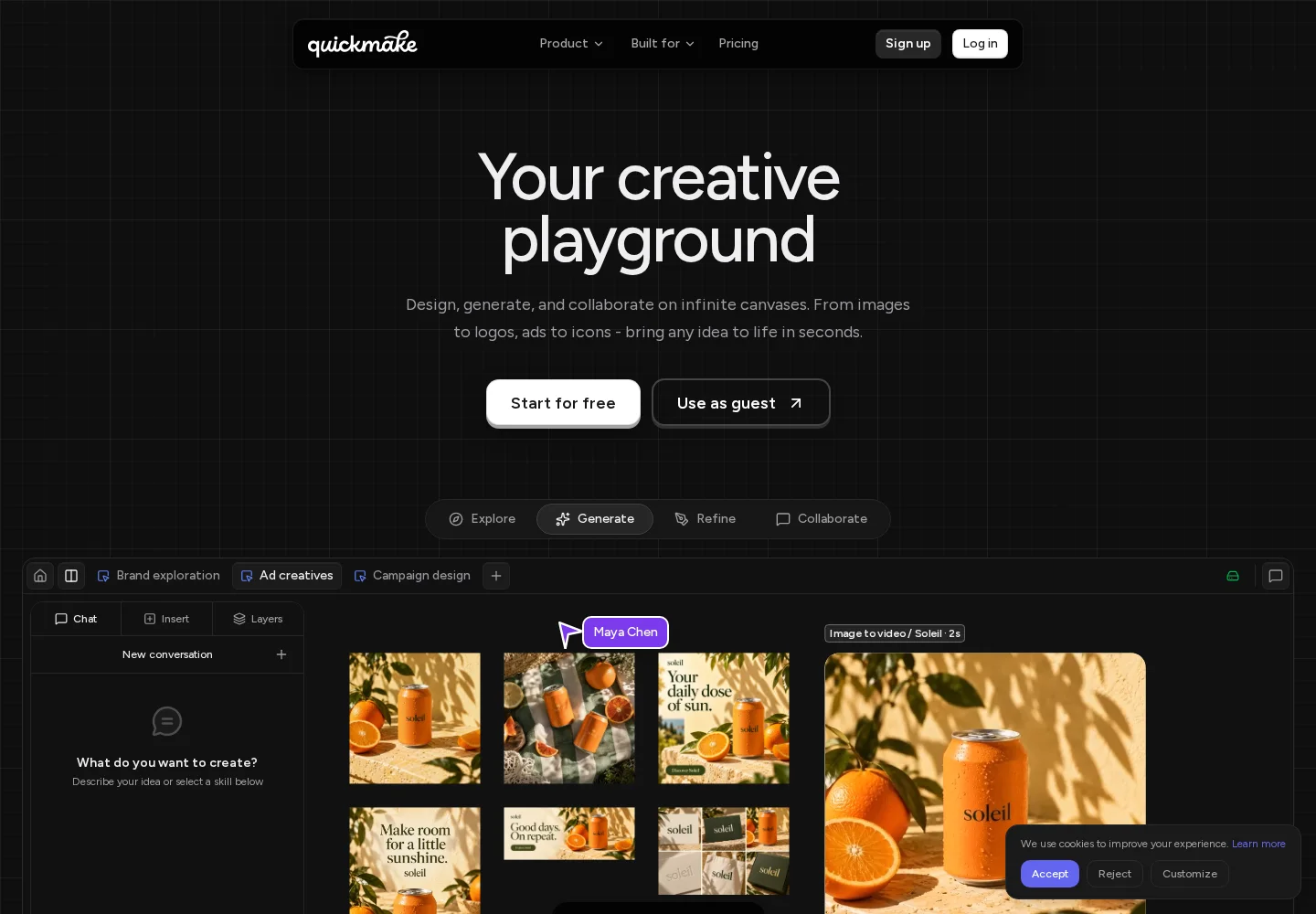
Quickmake's landing page, captured September 22, 2026.
For a reference collection with different image sizes, see how grids, stacks, and shape styling help organize the board.
Why choose it: Your board needs to lead into original artwork. For a product launch, you could keep lighting references beside the product photo, explore an image, and build a social layout on the same canvas.
Where another tool may fit better: If you only need reference images floating beside an existing desktop art program, PureRef is a more focused option. If your board is mainly a collection to hand to someone else, compare Milanote.
Pricing: Check Quickmake's plans for account features and AI allowances. You can explore the workspace before choosing a plan.
2. Milanote — a board you can hand to someone else

Milanote is an appealing choice when the board itself is the deliverable: a photographer's brief, a direction for a brand identity, or references for a film. Images and written notes can explain both the look and the reason behind it. Its moodboarding page shows how those materials can be arranged and shared.
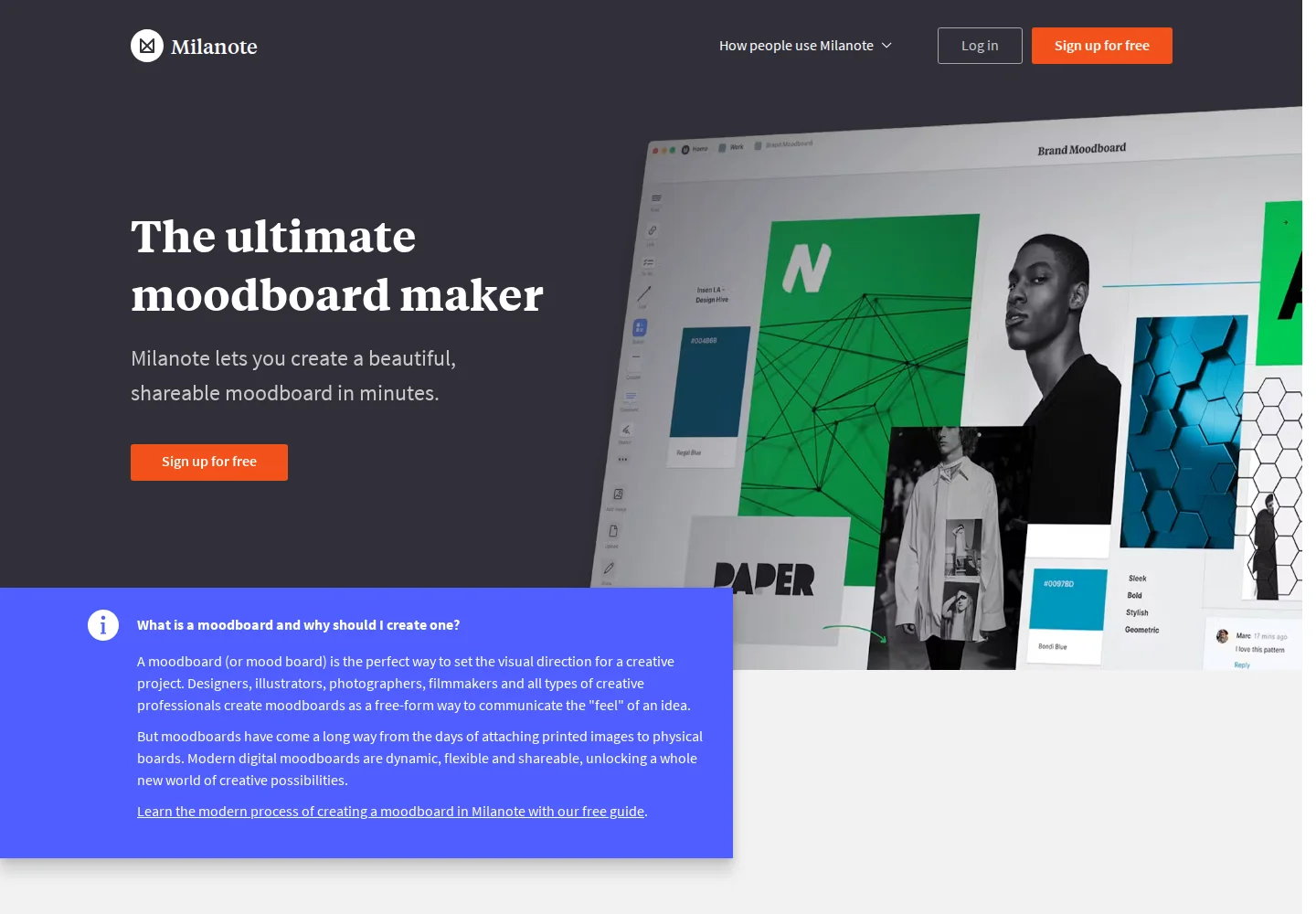
Milanote's moodboarding landing page, captured September 22, 2026.
The web clipper is useful for collecting references as you browse. Templates can give a brief enough structure to make sense to someone who did not collect the material.
Watch the free allowance: It includes 100 notes, images, or links and 10 file uploads. That is worth counting if you collect extensively before editing a board down. The individual paid plan is $9.99/month billed annually or $12.50 monthly. Milanote pricing.
3. PureRef — references that stay beside your work

PureRef addresses a different need from a shared browser board. It is a desktop reference viewer for Windows, Mac, and Linux. Arrange images, add notes, and keep the window on top while you work in another application. That makes it worth considering for painting, illustration, and 3D work. PureRef overview.
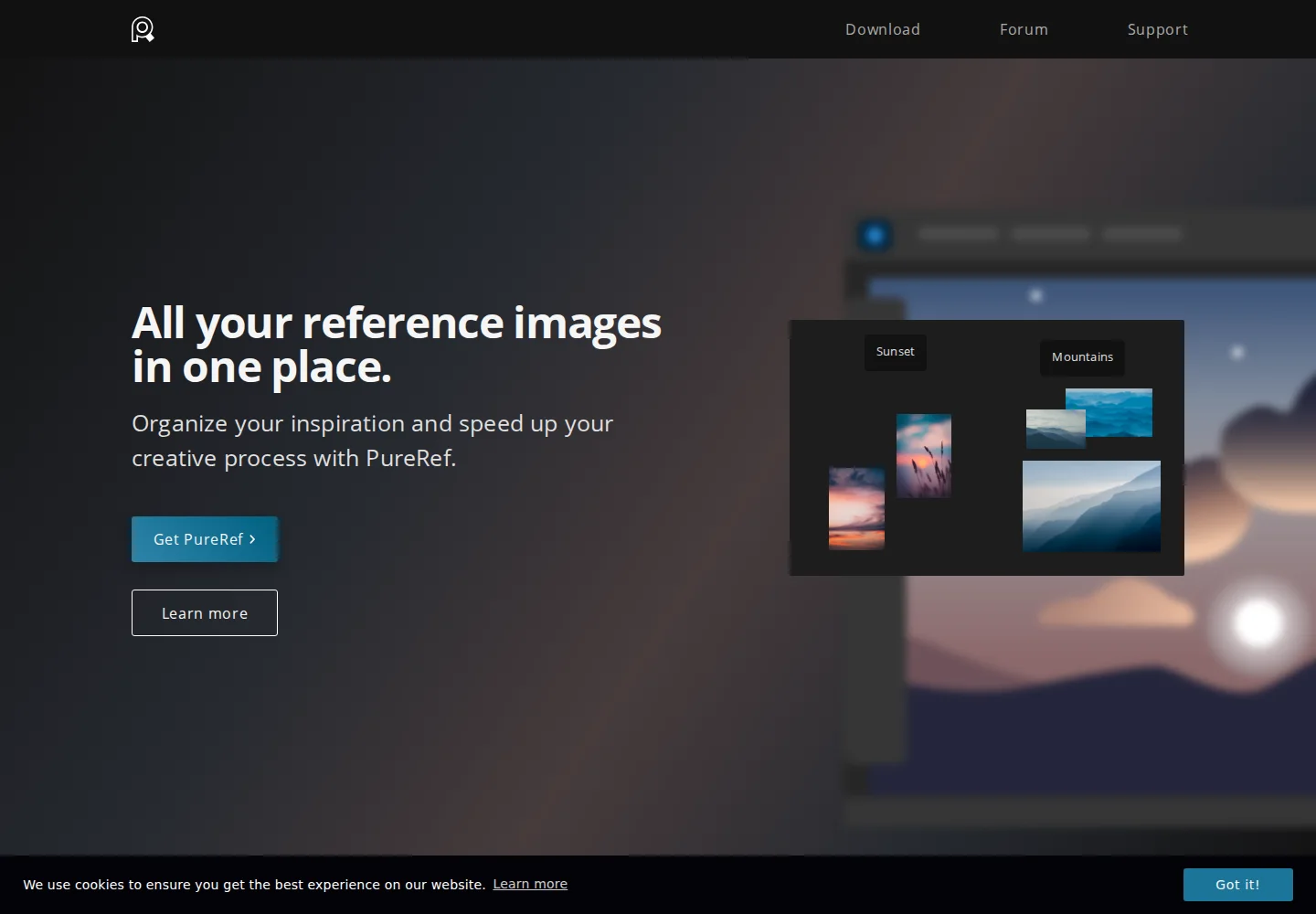
The PureRef landing page, captured September 22, 2026.
The reason to choose it: You already have an art application you like. You need the reference collection to stay visible without taking over the rest of your workflow.
The limitation for this list: Treat it as a reference workspace. If client comments and shared browser access are central to your process, compare the collaboration tools here.
Pricing: PureRef distinguishes personal, small-business, and business licenses. Select the appropriate use category on its download page; personal terms should not be assumed to cover studio work.
4. FigJam — work out the direction together

FigJam makes sense when the moodboard is a discussion. Put several directions in front of the team, add context, and collect feedback before moving into detailed design. Its moodboard template brings images, color choices, and notes into a collaborative board.
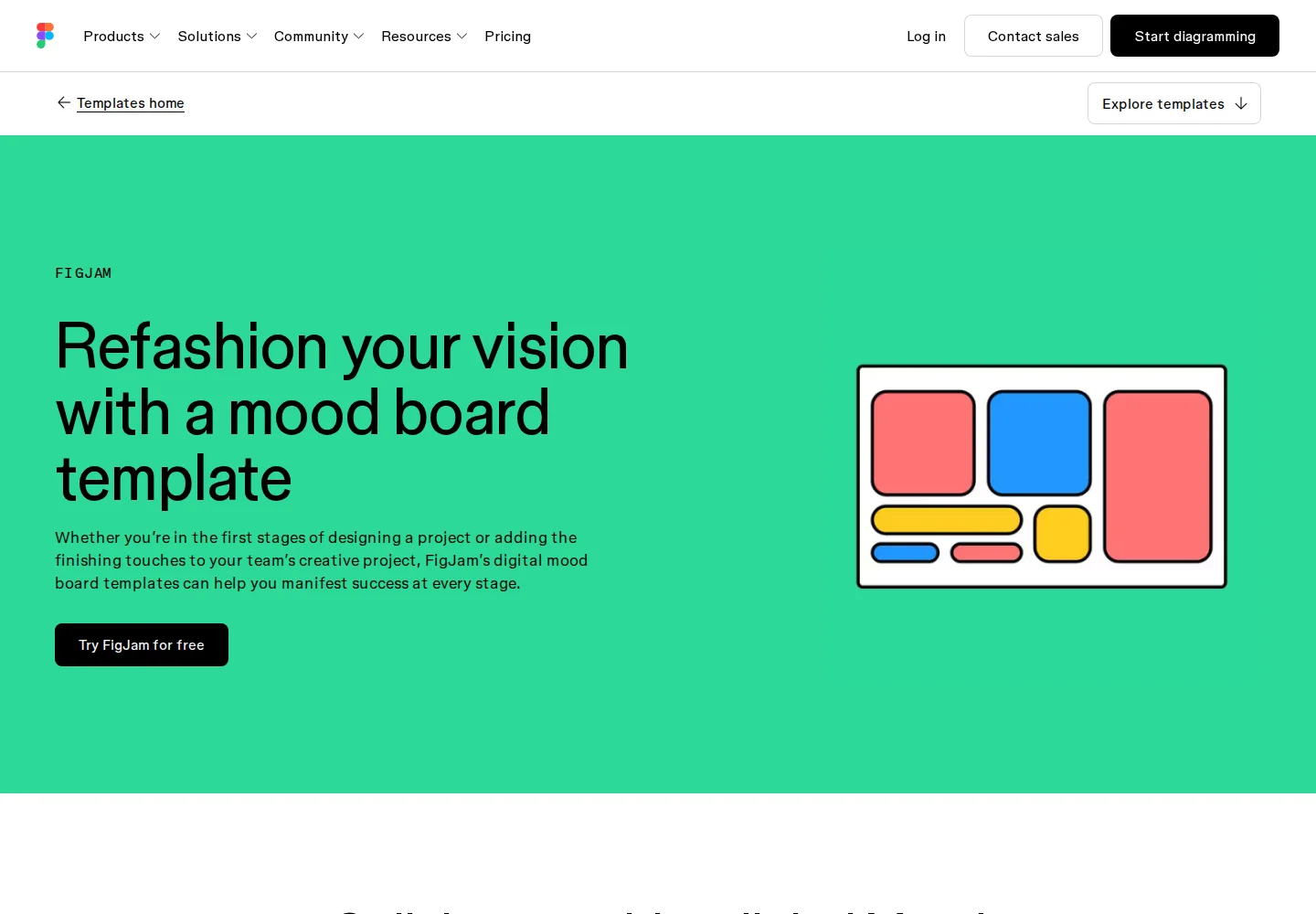
The FigJam moodboard template page, captured September 22, 2026.
A useful distinction: FigJam is the planning space. Editing a finished interface in Figma Design is a separate activity with different seat requirements. Check those before buying access for the whole team.
Pricing: Figma offers a free Starter plan and paid seats. See which seats include the tools you need.
5. Miro — keep the moodboard attached to the project

If a team already plans its campaign in Miro, a separate moodboarding subscription may not solve much. Miro lets you bring images, files, and links into a board, arrange the material into frames, and invite people to comment or contribute. See its moodboard tools.

The Miro landing page, captured September 22, 2026.
The advantage is continuity: references can stay near the audience notes and project decisions. That is more compelling for an ongoing team project than for a small, private image collection.
Pricing: Free includes three editable boards. Check paid plans for the export, sharing, and AI features you need. Miro pricing.
What to put on your first board
Use a small collection that answers a real design question. Include a few image references, a color direction, a typography sample, and notes about what matters in each example. “Use this lighting” is more useful than an unlabeled photo.
Separate competing directions. Mixing a restrained editorial look with bright, playful references can produce a collection everyone likes without a direction anyone can follow.
Frequently asked questions
What is the best moodboard tool for designers?
It depends on the next step. We recommend Quickmake when you want to continue into image creation and layouts, Milanote for a shareable creative brief, and PureRef for references beside a desktop art application. FigJam and Miro are worth considering when the board needs a team discussion.
Can I make a moodboard for free?
Milanote, FigJam, and Miro offer free starting points. Their limits differ, so compare the number of items or boards you need and how you intend to share them. Check the linked pricing pages before inviting a team or building a large reference collection.
What is the difference between a moodboard and a whiteboard?
A moodboard communicates a visual direction through imagery, color, type, and short explanations. A whiteboard is a more general workspace. You can build a moodboard on a whiteboard, but you may prefer a dedicated reference tool if collecting and reviewing images is most of the job.
Can AI help me make a moodboard?
Yes. It can help explore imagery when you cannot find a suitable reference. Quickmake includes image generation, and Miro documents an AI moodboard workflow. Label generated concepts so collaborators can distinguish a proposed look from an existing product or location. To explore the differences between creating imagery and organizing a board, compare AI-assisted canvas workflows.
Which moodboard tool should I use with clients?
Start with the client's role. Do they need to view a finished direction, leave comments, or move images themselves? Compare the relevant sharing permissions before choosing. A board is easier to review when you label the options and state the decision you need from the client.
About this guide: We make Quickmake, which is included in this list. Recommendations are based on official product information reviewed on September 22, 2026, rather than hands-on testing of every tool. Screenshot captions link to the pages shown.