


Sometimes the easiest way to make sense of a project is to lay everything out: the notes, the screenshots, the half-finished draft, and the idea you're not ready to throw away. That's the appeal of an infinite canvas. You can keep adding to it without deciding where the edge of the page should be.
The trouble comes when you start choosing an app. Tools that look similar in a screenshot can feel quite different once you put real work into them. A board full of research notes needs a way to find and reuse those notes. A campaign needs room to compare designs. A workshop needs to be easy for everyone to join.
We've gathered 11 infinite canvas tools for those different situations. You'll find familiar whiteboards alongside apps for research, sketching, and visual creation, with the details that matter when you're deciding where to start.
Compare the tools at a glance
Start with the result you want to leave the canvas with.
| Tool | Our pick for | What to consider | Pricing starting point |
|---|---|---|---|
| Quickmake | Taking a visual idea through to a design | AI allowances depend on your plan | Current plans |
| Milanote | Collecting a creative direction | Free plan limits the number of items | Free; individual paid plan from $9.99/month, billed annually |
| Miro | Connecting team planning and delivery | Budget for seats and the features your team needs | Free; Starter $8/member/month, billed annually |
| FigJam | Planning with a team that uses Figma | Choose the appropriate Figma seat | Free Starter plan; paid seat options |
| Excalidraw | Explaining an idea with a quick diagram | Saved team workspaces are a separate consideration | Free editor; optional Excalidraw+ |
| Heptabase | Developing a connected research library | Compare AI allowances as well as subscription price | Pro $107.88/year or $11.99/month |
| Obsidian Canvas | Mapping knowledge stored in local files | Decide how you will sync and back up your vault | Free app; optional paid services |
| Scrintal | Arranging notes into an argument | Check current subscription terms directly | See the vendor's pricing page |
| Mural | Leading structured group sessions | Guest and visitor permissions vary by plan | Free; Team+ $9.99/member/month, billed annually |
| Apple Freeform | Keeping a visual workspace across Apple devices | Check device requirements and optional premium features | Included app; optional Creator Studio subscription |
| tldraw | Sketching, or building a custom canvas product | The web whiteboard and developer SDK have different terms | Free web whiteboard; separate SDK licensing |
Dollar amounts are in USD. Annual rates require annual billing; taxes and optional extras may apply. Each entry links to its official product or pricing information.
What makes an infinite canvas useful?
Space is only the starting point. Before choosing a tool, consider three questions:
- What will you put on it? A few arrows and labels need different tools from a collection of PDFs, detailed notes, images, and finished layouts.
- Who needs to work with you? For a workshop, joining and contributing should be straightforward. For personal research, retrieving an old idea may matter more.
- What happens next? You might need a shareable board, a reusable note library, an editable design, or an exported file. Start with that destination.
For AI features, look at the actual task: generating an image, summarizing material, organizing notes, and editing a layout are different capabilities. Check which are included in the plan you intend to use. For a closer look at generation, workshop organization, and research assistance, compare AI canvas tools.
1. Quickmake

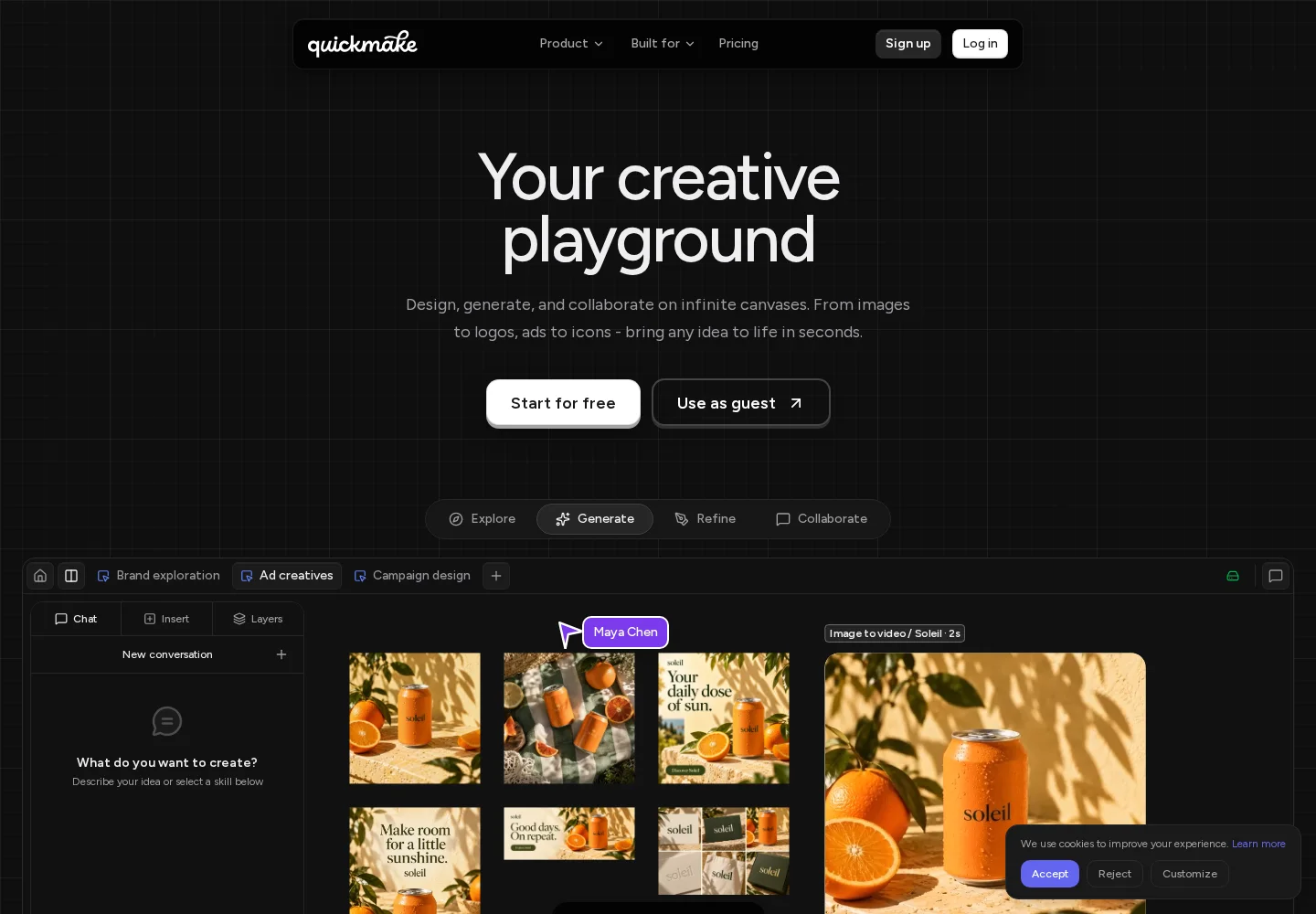
Quickmake page, captured September 22, 2026.
Our pick for: turning a creative brief into visual work.
A launch campaign often needs more than a place to brainstorm. You need to collect references, explore imagery, write copy, and compose several designs. Quickmake brings these activities into one canvas workspace.
Start in Think mode to arrange notes, references, and connections. Switch to Design mode to work on the layouts. The AI creative agent can help create images, video, and copy through a conversation, while the design editor gives you control over frames, layers, typography, and vectors.
For example, you could place a product photo beside a short brief, explore a new visual direction, and arrange social posts and a banner next to the original references. You can compare the work with the idea that started it. Use Quickmake canvas shortcuts to add notes, checklists, grids, and stacks as the project grows.
What stands out
- Planning and composition share the same workspace.
- Image generation and editing sit alongside tools for refining the design.
- Separate frames let you keep several formats and directions together.
- Sharing and comments keep feedback beside the work.
The tradeoff: Quickmake is our recommendation when the outcome is visual content. For a library centered on linked reading notes, consider Heptabase or Obsidian. For a facilitated workshop, compare Miro and Mural against your session requirements.
Pricing: See Quickmake's current plans and included AI credits. Account-based features require signing in; the workspace is available to explore through Try Quickmake.
Try this first: Bring one brief, three references, and a product image. Build a single layout before expanding to a campaign.
2. Milanote

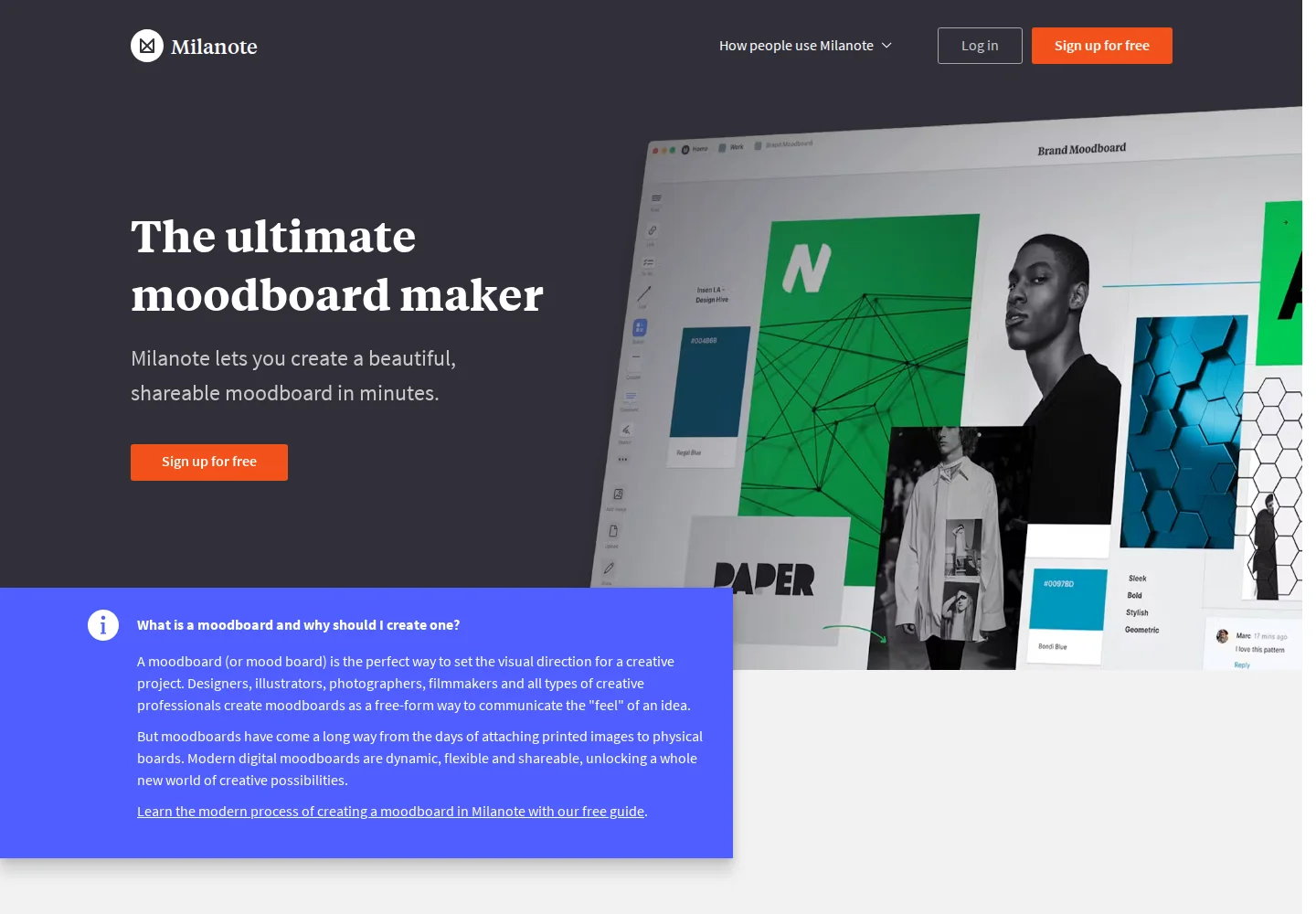
Milanote moodboarding page, captured September 22, 2026.
Our pick for: gathering and presenting a creative direction.
Milanote is a useful starting point when you have a collection of inspiration and need to explain how it fits together. Arrange imagery, notes, and links into a board that communicates the look or story of a project.
What stands out
- Images, written notes, and tasks can sit together.
- Creative templates provide starting points for moodboards and project planning.
- A web clipper helps collect material while browsing.
The tradeoff: It is especially appealing for organizing references. If your next step is detailed design production, include that handoff in your trial. The free plan's item allowance can also become a constraint as a reference library grows.
Pricing: Free includes 100 notes, images, or links and 10 file uploads. The individual paid plan is $9.99/month billed annually, or $12.50 monthly. See Milanote's plans.
Choose it when: Your immediate deliverable is a creative brief or moodboard. If collecting and presenting references is your main task, compare moodboard tools for creative teams. Explore Milanote's product overview.
3. Miro


Miro page, captured September 22, 2026.
Our pick for: bringing team planning into a shared workspace.
Consider Miro when a board needs to support several stages of a team's work: collecting input, mapping a process, and turning decisions into structured plans. Its canvas includes formats such as documents, tables, and Kanban alongside whiteboarding.
What stands out
- Templates and integrations support established team workflows.
- Paid plans include facilitation features such as timers and voting.
- AI features include diagram generation, summaries, and workflows, with access and allowances depending on the plan.
The tradeoff: Choose a plan around the features and participants you actually need. A broad feature set and per-member subscriptions can be more than a small personal project requires. If your work centers on references and finished visuals, explore Miro alternatives for creative work.
Pricing: Free includes three editable boards. Starter is $8/member/month billed annually and adds unlimited boards. See Miro's feature and pricing comparison.
Choose it when: Your canvas needs to connect brainstorming with ongoing team planning.
4. FigJam

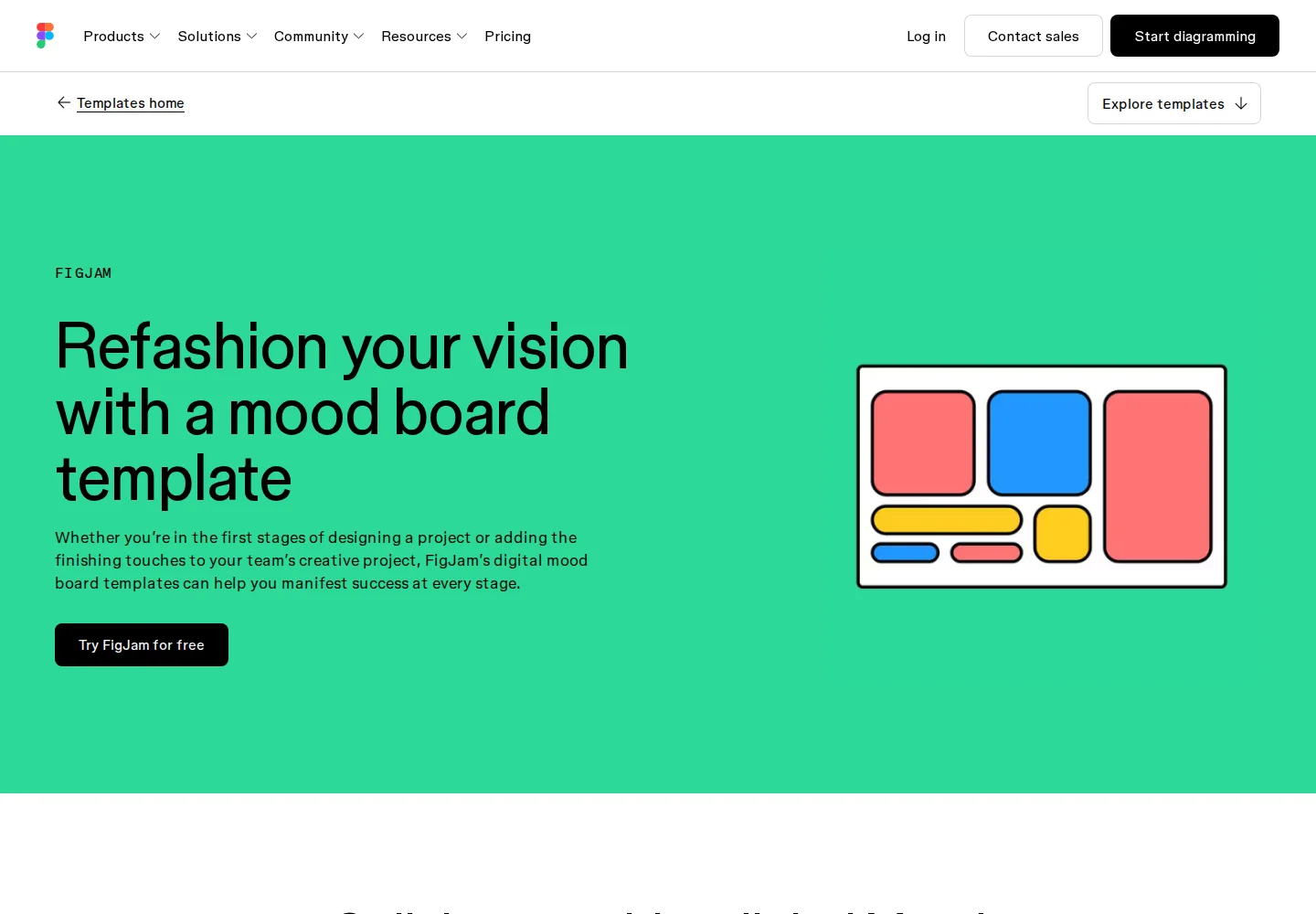
FigJam moodboard template page, captured September 22, 2026.
Our pick for: collaborative planning in a Figma workflow.
FigJam is worth considering when product conversations already lead into Figma design files. It gives a team a space to discuss a user journey, sketch a flow, or run a retrospective before deciding what to build.
What stands out
- Shapes and connectors support process maps and user flows.
- Shared boards and templates help structure group activities.
- It fits into Figma's wider workspace and account system.
The tradeoff: Check the distinction between FigJam access and Figma Design editing. Planning a feature and designing its interface may require different seats.
Pricing: Figma has a free Starter plan. Paid Collab seats include FigJam; review the billing interval and other tools included on Figma's pricing page.
Choose it when: Your team wants a shared planning space close to its design workflow. See the FigJam overview.
5. Excalidraw

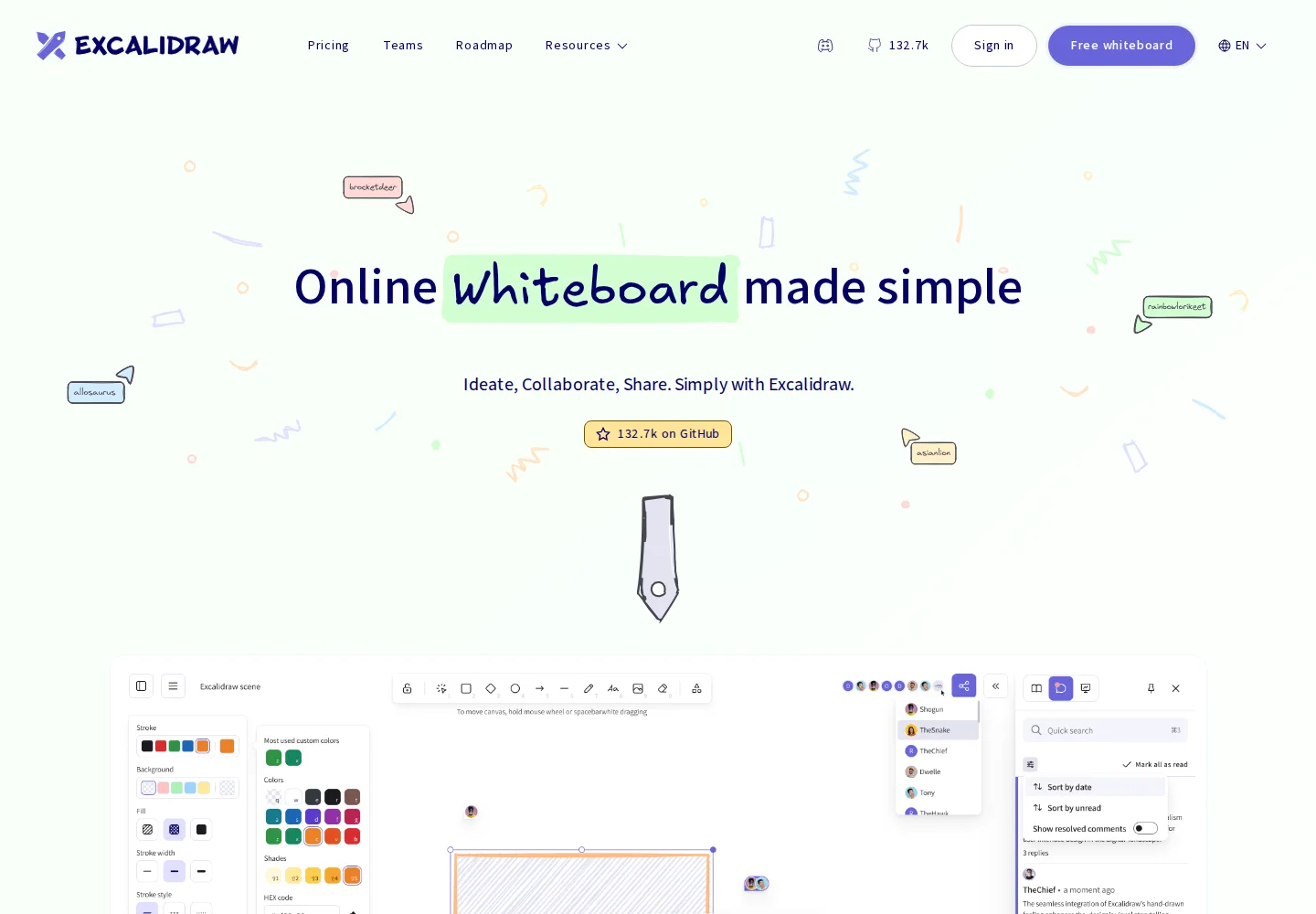
Excalidraw marketing page, captured September 22, 2026.
Our pick for: getting an explanation onto the screen quickly.
Sometimes a conversation needs three boxes and a few arrows. Excalidraw's sketch-like appearance suits those moments: a system overview, an early wireframe, or a rough explanation you want someone else to react to.
What stands out
- Shapes, labeled arrows, freehand drawing, and image support.
- PNG and SVG export, plus an editable drawing format.
- A free, open-source editor and a web app with real-time collaboration.
The tradeoff: A drawing session and a persistent team workspace are different needs. Check how you want to save, organize, and revisit work before making it your team's main tool.
Pricing: The core editor is free. Excalidraw+ is a separate paid offering. The official project documentation explains the editor and hosted app capabilities.
Choose it when: You want to make an idea understandable while it is still rough.
6. Heptabase

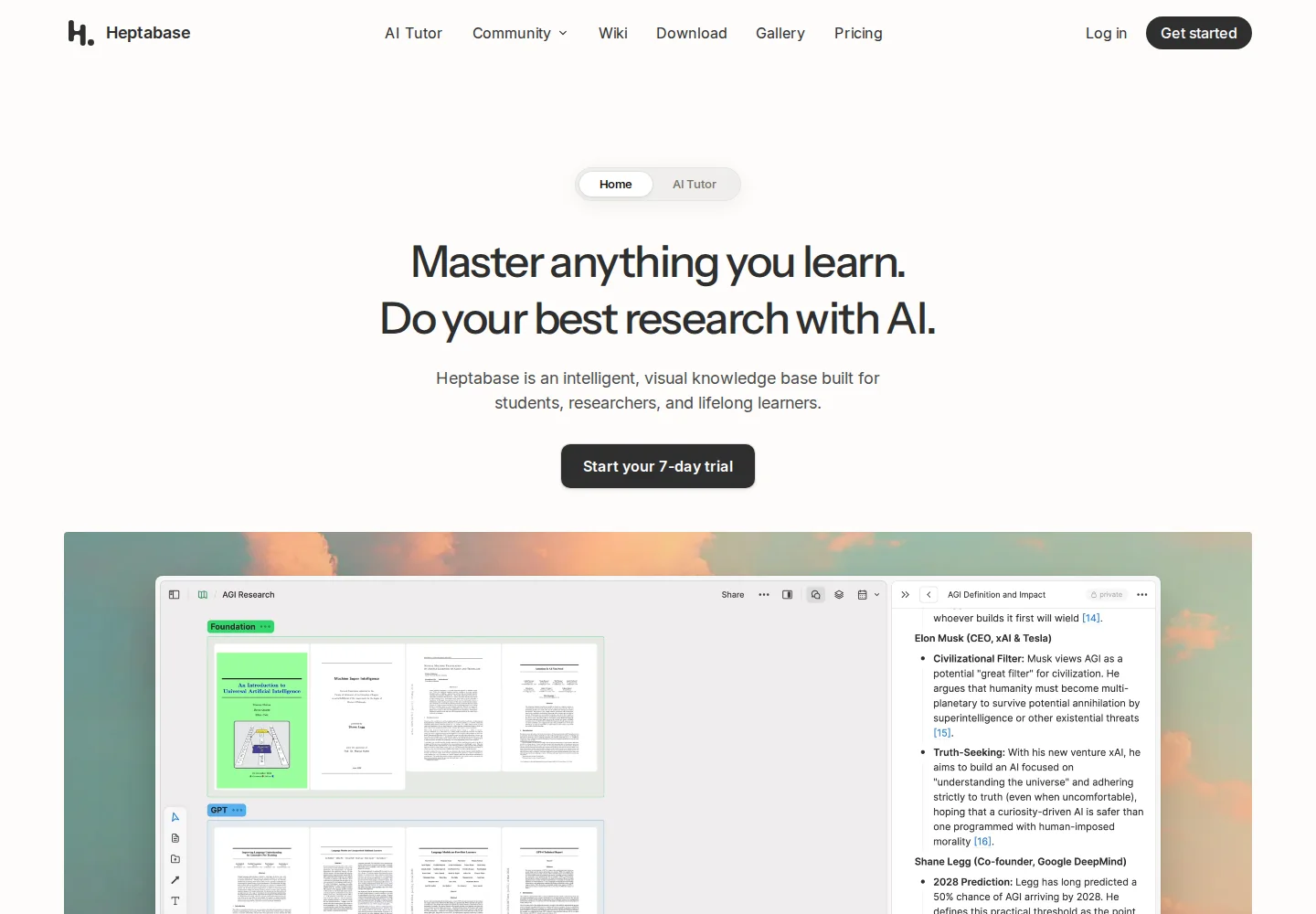
Heptabase page, captured September 22, 2026.
Our pick for: turning reading and research into connected knowledge.
Heptabase makes sense when your project develops through sources, notes, and questions. Cards and whiteboards let you organize what you learn spatially, while the surrounding knowledge tools support a library you can keep building.
What stands out
- Whiteboards, note cards, and bidirectional links.
- PDF annotation and connections to research tools such as Readwise and Zotero.
- AI research and learning features, with allowances tied to subscription tiers.
The tradeoff: A knowledge library rewards regular maintenance. Try it with a real reading project to see whether organizing notes improves your understanding enough to become a habit.
Pricing: Standard Pro is $107.88/year, equivalent to $8.99/month, or $11.99 on monthly billing. Premium tiers increase AI access and allowances. See the official subscription guide.
Choose it when: The notes and connections are the long-term value of your work. See Heptabase's product overview.
7. Obsidian Canvas
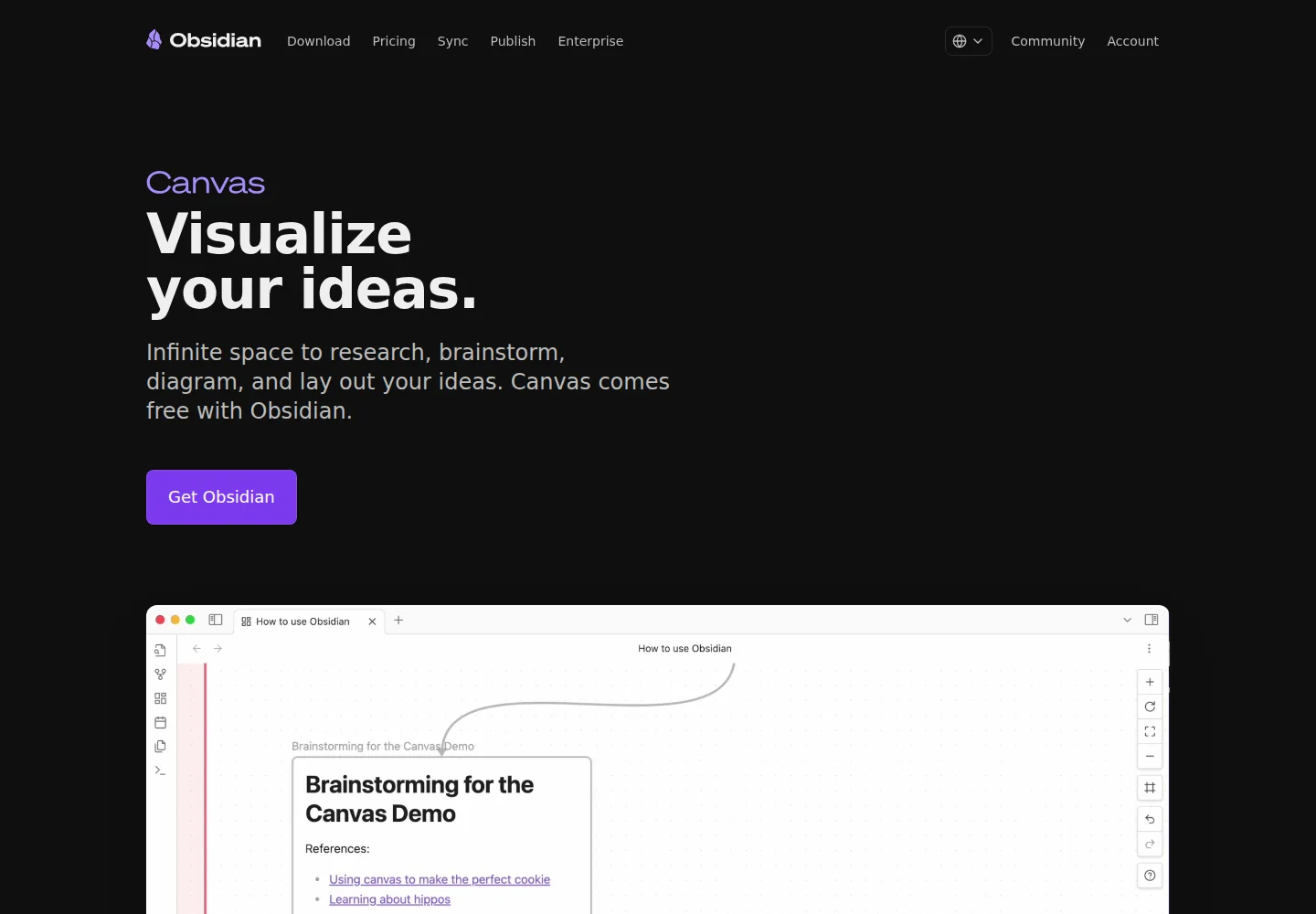
Obsidian Canvas page, captured September 22, 2026.
Our pick for: adding a visual map to a local note collection.
Obsidian Canvas is a natural candidate if your notes already live in Obsidian. Place notes, media, and web pages together, then connect them to show the structure of an idea or project.
What stands out
- Canvas works alongside the notes in your vault.
- Local files give you direct control over storage and backups.
- The open JSON Canvas format makes the board's structure accessible beyond a single proprietary file format.
The tradeoff: Decide how you want to handle device sync, backups, and shared work. File ownership is useful, but it still needs a workflow.
Pricing: Obsidian is free, including for commercial use. Sync and Publish are optional paid services; a commercial support license is optional too. See Obsidian pricing.
Choose it when: You want the canvas to be part of a durable personal knowledge system. See Obsidian Canvas.
8. Scrintal

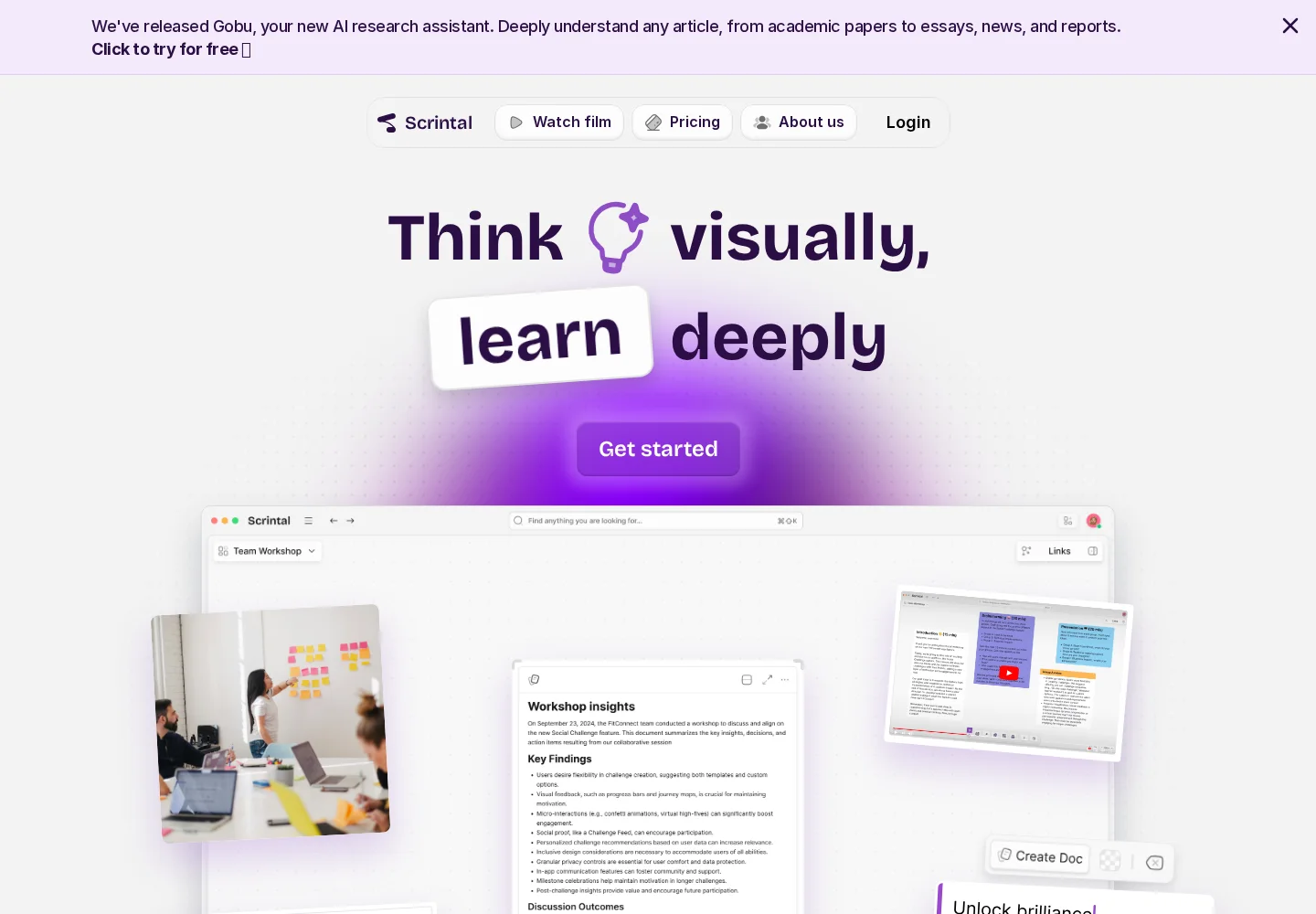
Scrintal page, captured September 22, 2026.
Our pick for: developing an outline by arranging your notes.
Scrintal combines writing with spatial organization. A note can hold substantial content while remaining something you can move around a board. That makes it a candidate for essays, research synthesis, and planning an argument before committing to its order.
What stands out
- Cards support short notes and longer writing.
- Cards can be reused across boards.
- Embedded media and Markdown import help bring existing material into the workspace.
The tradeoff: Test a small import and export with your own notes before moving an established library. How links, attachments, and formatting travel matters more than a tidy sample board.
Pricing: Consult Scrintal's pricing page for current terms. We could not reliably confirm a numeric price from the official page during this review.
Choose it when: Moving the pieces of an argument helps you decide what to write. See Scrintal's card features.
9. Mural

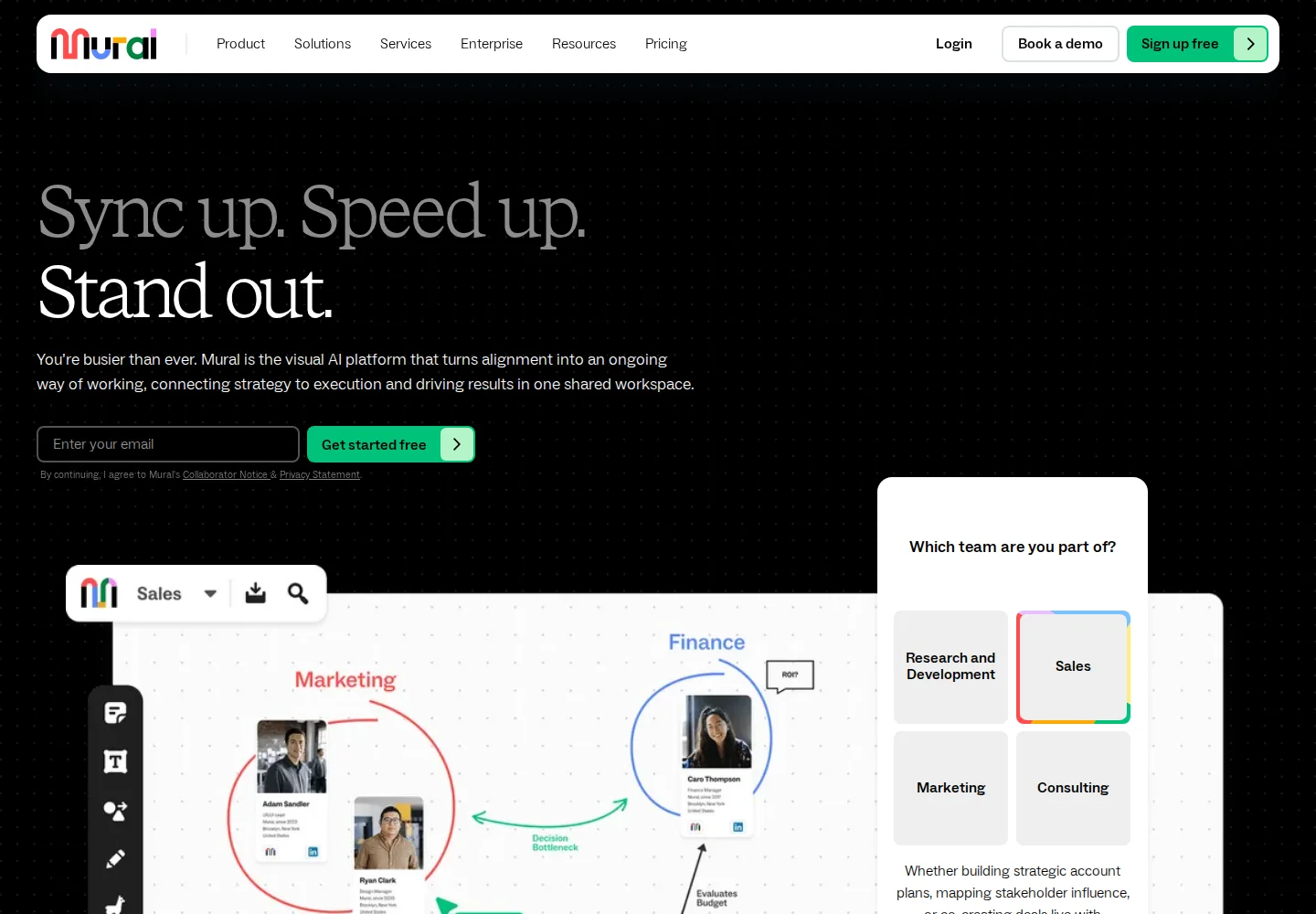
Mural page, captured September 22, 2026.
Our pick for: making a group session the center of the workflow.
If your work starts with a workshop agenda, put Mural on the shortlist. Its shared workspaces and visual collaboration tools support activities where participants contribute, discuss, and organize ideas together.
What stands out
- A free starting point for team collaboration.
- Paid options for unlimited editable murals and visitor editing.
- Higher tiers add capabilities such as SSO and additional integrations.
The tradeoff: Participant roles deserve a careful look. Members, visitors, and external collaborators do not necessarily receive the same access on every plan.
Pricing: Free allows three editable murals at a time. Team+ is $9.99/member/month billed annually or $12 monthly. Review the permission and feature differences on Mural's pricing page.
Choose it when: You regularly bring people together around structured visual activities and need a workspace for those sessions.
10. Apple Freeform

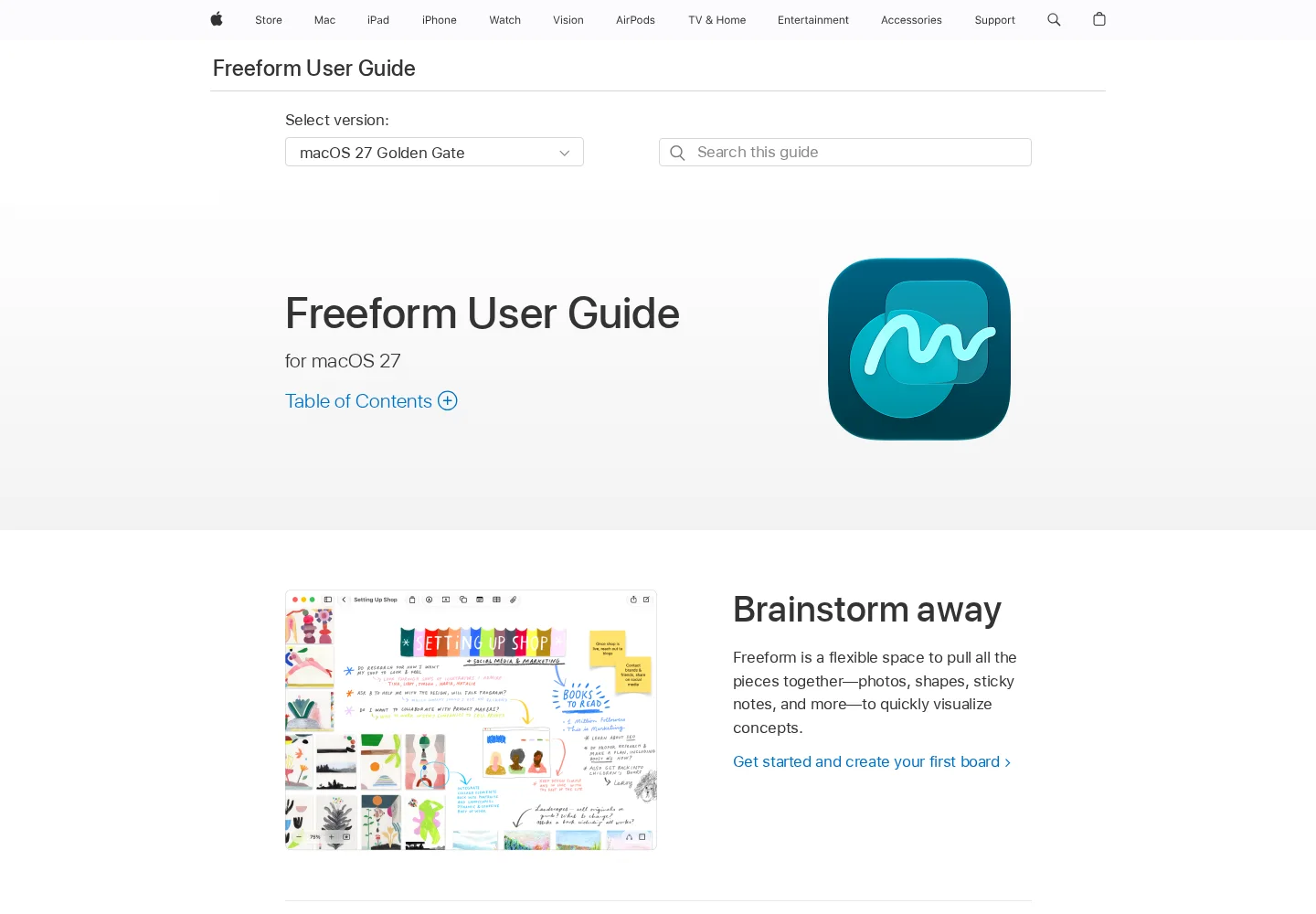
Apple Freeform user guide page, captured September 22, 2026.
Our pick for: everyday visual thinking across Apple devices.
Freeform is worth trying if your work already moves between a Mac, iPad, and iPhone. Collect photos, shapes, sticky notes, and sketches on a board, then return to it on another device through iCloud.
What stands out
- Mixed visual material in a flexible board.
- Shared boards with real-time collaboration.
- Continuity across supported Apple devices using the same Apple Account.
The tradeoff: Start with the people who need to participate. An Apple-focused workflow may suit your own devices better than a team with varied hardware.
Pricing: The base app is included on supported Apple devices. Apple also documents optional Creator Studio features, so check access before assuming every capability is included. See the Freeform user guide.
Choose it when: You want a convenient visual notebook within your existing Apple setup.
11. tldraw

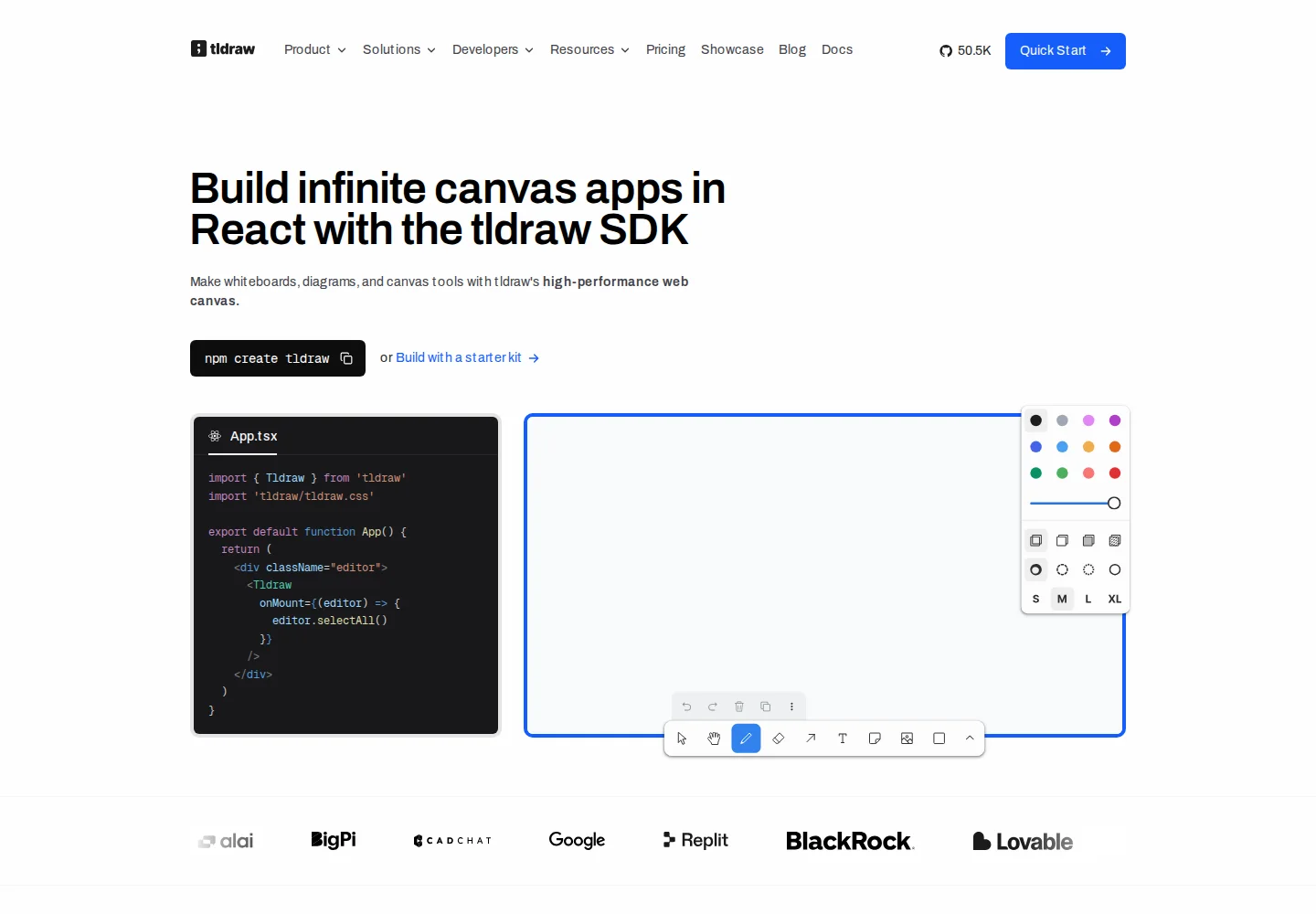
tldraw SDK page, captured September 22, 2026.
Our pick for: a simple web whiteboard, with a separate path for developers.
There are two reasons to consider tldraw. The web whiteboard is a place to draw and sketch ideas. The developer SDK is for teams building a canvas experience inside their own application.
What stands out
- A free browser whiteboard for everyday sketching.
- A React SDK for custom canvas products.
- SDK licensing that includes multiplayer sync and self-hosting options.
The tradeoff: Using the website and embedding the SDK are separate decisions. A free drawing app does not mean unrestricted commercial use of its underlying developer toolkit.
Pricing: The SDK offers a 100-day trial, a hobby-license application, and commercial production licensing with value-based pricing. See tldraw's licensing page.
Choose it when: You want to sketch on the web, or your product team specifically needs a canvas foundation to build on.
Which canvas should you try first?
Pick one real project and the tool that matches its next milestone:
- A finished visual: Start with Quickmake. Keep the brief nearby while you explore images and build the design.
- A shared creative direction: Start with Milanote. Gather references and explain why they belong together.
- A team decision: Compare Miro, FigJam, and Mural using the same workshop activity.
- A stronger understanding of a subject: Compare Heptabase, Obsidian Canvas, and Scrintal with a handful of your own sources.
- A quick explanation: Open Excalidraw or tldraw. On Apple devices, also consider Freeform.
Before moving everything, complete one small project. Invite a collaborator if that matters, reopen it on another device, and export whatever you need to keep. Those steps reveal whether a canvas fits your work better than an empty-board demo.
Frequently asked questions
What is an infinite canvas tool?
An infinite canvas is a workspace you can pan and zoom around without being confined to one page. It lets you arrange related material spatially. Depending on the app, that material can include sketches, detailed notes, references, diagrams, or editable designs.
Which infinite canvas tools are free?
Excalidraw's core editor, Obsidian, and the tldraw web whiteboard offer free starting points. Miro, Milanote, FigJam, and Mural also have free plans with limits. Check the linked pricing pages for the items, editable boards, and participant access your project needs.
Which canvas tools are best for creative projects?
We recommend Quickmake when you want to move from references into image creation and layouts. Milanote is worth considering for a creative brief or moodboard. FigJam and Miro can suit teams that need to discuss and agree on a visual direction together.
Which canvas tools work well for research and note-taking?
Heptabase, Obsidian Canvas, and Scrintal are the research-oriented options in this list. Heptabase combines sources, notes, and whiteboards; Obsidian Canvas works with a local vault; Scrintal lets you arrange and reuse written cards. Try a small collection of your own notes before moving a library.
Can an infinite canvas replace a design editor?
Some canvases include design tools; others focus on notes or whiteboarding. Check for editable text, layers, frames, and the export formats you need. Quickmake includes a design editor, but a board that holds reference images does not automatically provide the tools to create the finished design.
What should I look for in an AI canvas?
Start with the task. Image generation, source explanations, sticky-note sorting, and layout editing are different capabilities. Check the context each feature can use, whether the result remains editable, and how credits or plan limits affect the work you expect to do.
Which canvas tools support team collaboration?
Miro, FigJam, and Mural focus on shared visual work, and Quickmake supports shared canvases and comments. Compare the role each participant needs: viewing, commenting, and editing can have different requirements. Include a collaborator in your trial so you can check the actual joining and feedback process.
Start with something you want to make
If you have a creative project waiting in a folder, bring its brief and references into Quickmake. Explore a direction, make a first version, and keep the alternatives beside it. A useful canvas gives you a clearer view of the work—and room to take the next step.
About this guide: We make Quickmake, which is included in this list. Recommendations are based on official product information reviewed on September 22, 2026, rather than hands-on testing of every tool. Screenshot captions link to the pages shown.