
Turn the image in your head into a place to start.
Describe a product scene, illustration, or visual concept. Generate images in Quickmake and explore variations alongside your references.
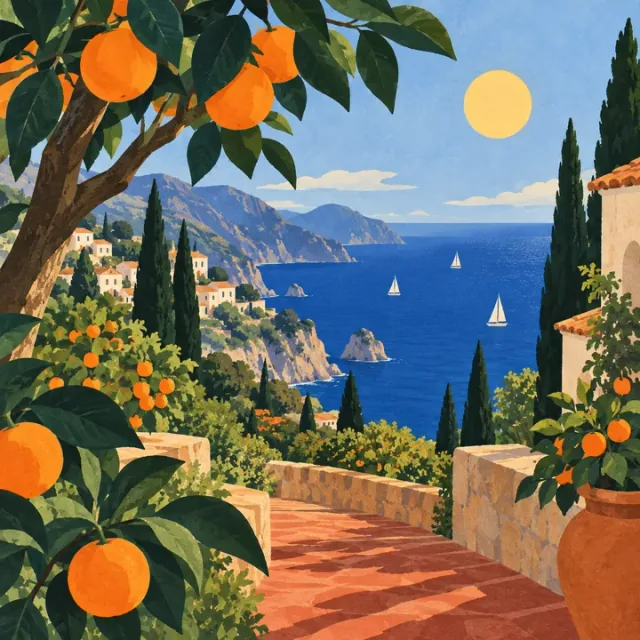
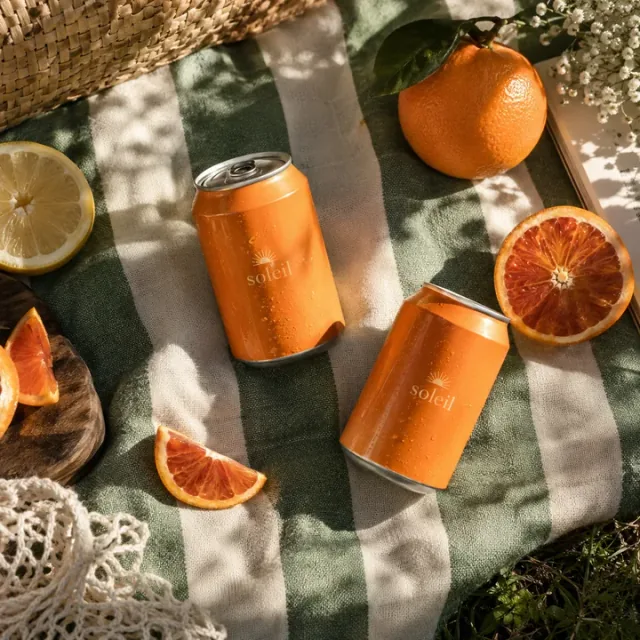
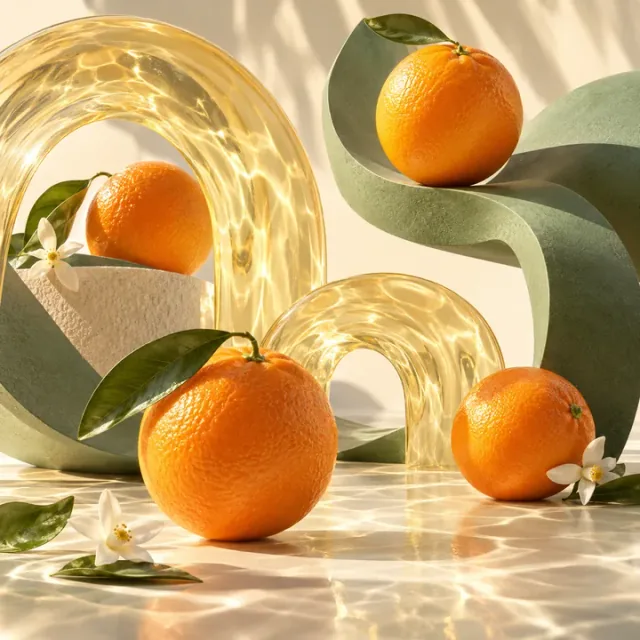
Start with a prompt. Find your direction.
Explore the image generator and a gallery of creative possibilities.
 Nano Banana ProNano Banana 2
 Seedream 5
 GPT Image 1.5
 Recraft V4
 Flux 2.0 Max
Text to image
Turn your ideas
into standout images.
Create original visuals for your website, campaigns, and social content from a simple description. Explore styles, try new directions, and bring your favorite results straight into your designs.
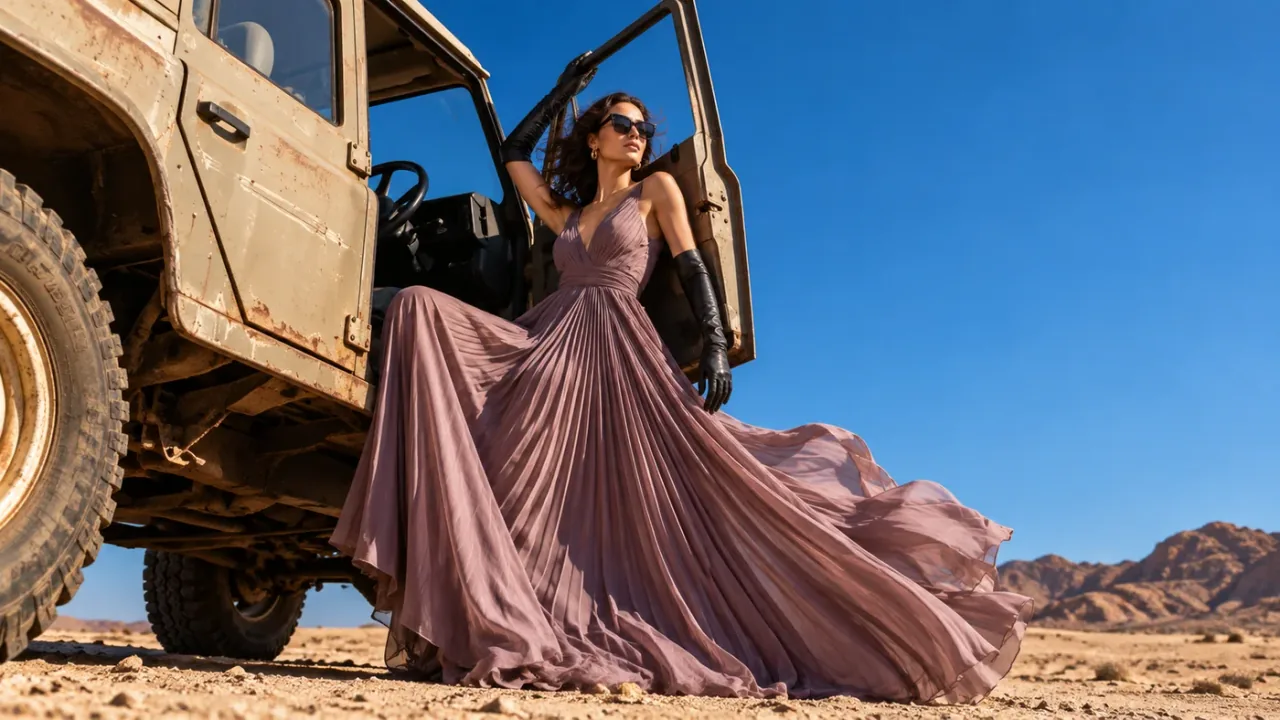
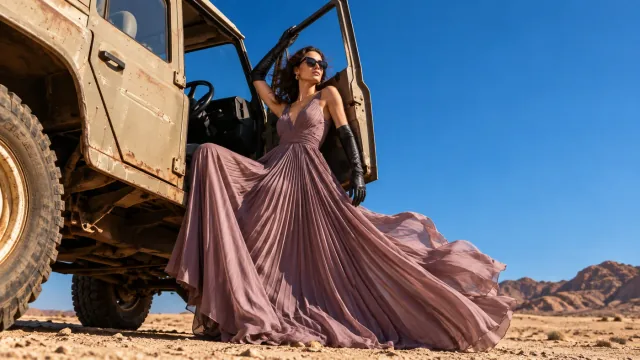
A dramatic fashion photograph of a woman in a flowing mauve gown, perched in the open doorway of a vintage off-road vehicle. Desert light, a vivid blue sky, and fabric caught in the wind.
How to generate images from text with AI
- 01
Describe your direction
Start with the subject, setting, mood, and composition you have in mind. Add image references when your chosen model supports them.
- 02
Explore the possibilities
Choose from the available image models and settings. Try another prompt or direction and compare the results.
- 03
Build with your image
Place your chosen image on the canvas. Add text, arrange a layout, or use image editing tools to take it further.
A few things to know.
Make your next idea in Quickmake.
Your references, creative tools, and designs. One place to make.
Generate an image