


Getting a first result from AI can be quick. Making that result useful usually takes more work. An image needs to fit a layout. A summary needs checking against the original notes. A promising idea needs a few revisions before you can show it to someone else.
That's what makes an AI canvas interesting: you have room to keep the source material, the output, and your changes together. But the features vary considerably between apps. Some help you make images and copy. Others organize a busy workshop board or help you work through research.
If you are still deciding between visual creation, whiteboarding, and a research workspace, start with our broader infinite canvas comparison.
This guide looks at five AI canvas tools through those everyday tasks. We'll cover what you can ask each one to do, where you can take the result next, and which plan details are worth checking before you subscribe.
Compare the AI workflows
| Tool | Most relevant job | Documented AI capabilities | What to check |
|---|---|---|---|
| Quickmake | Making creative assets | Images, video, and copy through a creative agent | Included credits and the editing steps you need |
| Miro | Developing team work on a canvas | Generation, contextual assistance, and workflows | Availability by plan and credit allowances |
| FigJam | Preparing and reviewing group sessions | Board templates, sticky-note sorting, and summaries | Seat access and current AI allowances |
| Mural | Finding patterns in team contributions | Mind maps, clustering, summaries, and classification | Eligible plan and workspace settings |
| Heptabase | Researching and understanding sources | Source explanations, note work, and AI tutoring | Subscription tier and AI limits |
1. Quickmake — create the material your project needs

Quickmake is the option we built for making things: product imagery, campaign visuals, video, and copy. You can develop a brief through a conversation with the creative agent, review the output, and continue working with it on the canvas. See the AI agent.
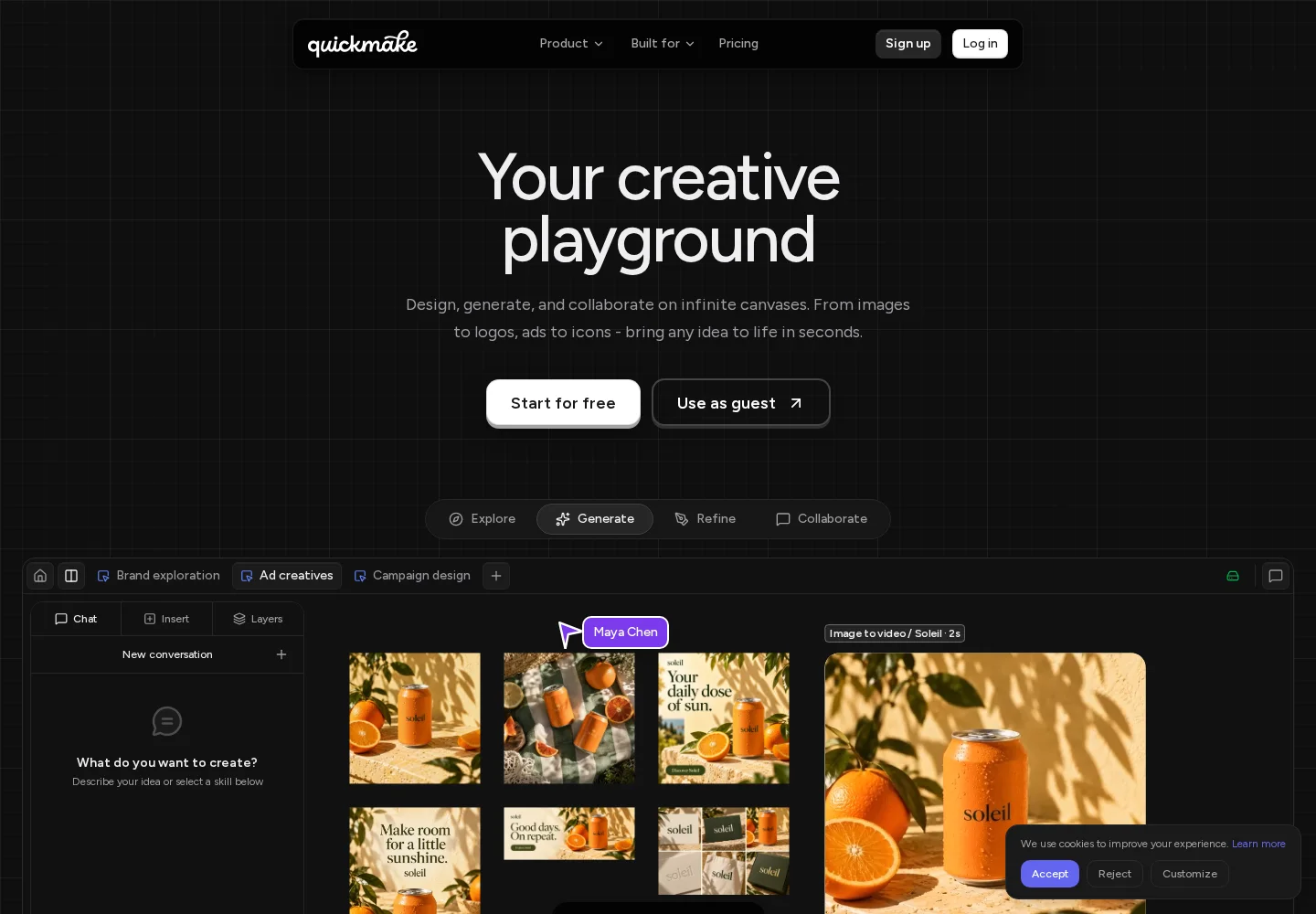
The Quickmake landing page, captured September 22, 2026.
The canvas matters because generation is rarely the end of the job. A useful image still needs to work with a headline, a logo, and a particular aspect ratio. Quickmake's design editor provides frames, layers, type, and vector tools for that next stage.
For example, start with a product image and a short campaign brief. Explore a visual direction with the agent, then compose a banner beside a social post. The AI can help produce material; you still judge whether the composition communicates the right thing. If agreeing on a visual direction comes first, our guide to choosing a moodboard tool compares ways to collect and review references.
Check before choosing: Match the included AI credits to your expected work, especially if video is part of it. For a source-heavy research library, look at Heptabase's workflow as well.
2. Miro — AI inside a broader team workspace

Miro's AI offering extends beyond summarizing stickies. Its product documentation describes using canvas context, generating material, and building workflows around team work. That makes it worth evaluating if research, plans, and diagrams already live in Miro. Miro AI overview.

The Miro landing page, captured September 22, 2026.
A useful trial: Give it the kind of board your team already maintains. Try the particular generation or organization task you want to improve, then inspect whether the result preserves the details that matter.
Pricing consideration: Feature availability and credits vary by plan. Use the current plan comparison rather than assuming every AI feature comes with basic board access.
3. FigJam — less setup and sorting around a session

FigJam's documented AI features have a clear place in a group session: generate a board template before it starts, sort sticky notes as material accumulates, and summarize the contributions afterward. FigJam AI.
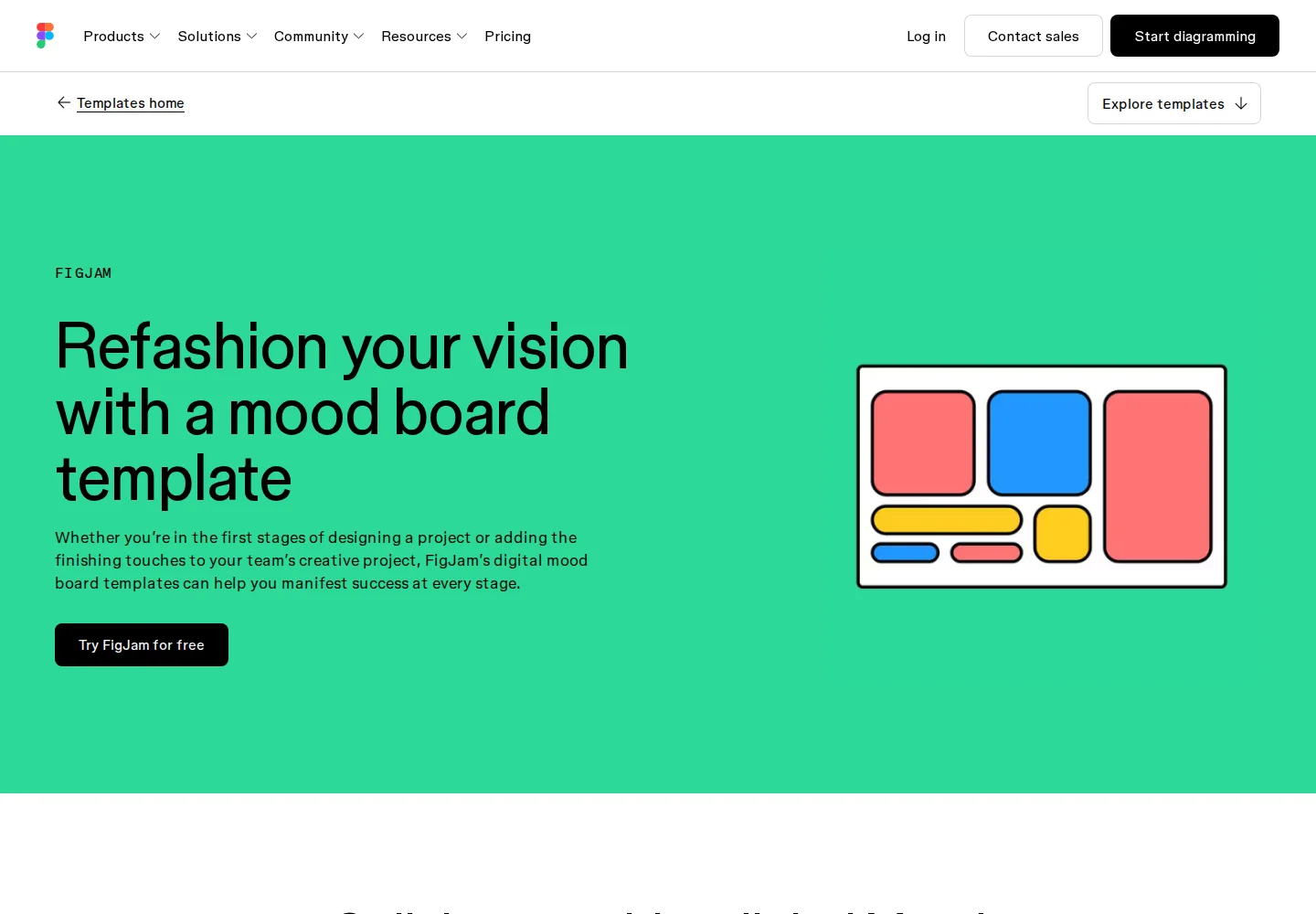
The FigJam moodboard template page, captured September 22, 2026.
This is a useful distinction for buyers: helping a team organize its ideas is a different job from generating the finished campaign imagery. Choose based on which of those is taking your time.
After sorting, inspect the outliers. A contribution that does not fit a large cluster may still be the most useful observation in the room.
Pricing: Check Figma's seats and AI allowances for the plan you intend to use.
4. Mural — make a large set of contributions easier to review

Mural documents AI tools for generating mind maps, clustering notes by topic, summarizing content, and classifying sentiment. Those tasks fit the period after a busy workshop, when the board contains plenty of material but the team still needs to discuss what it means. Mural AI.
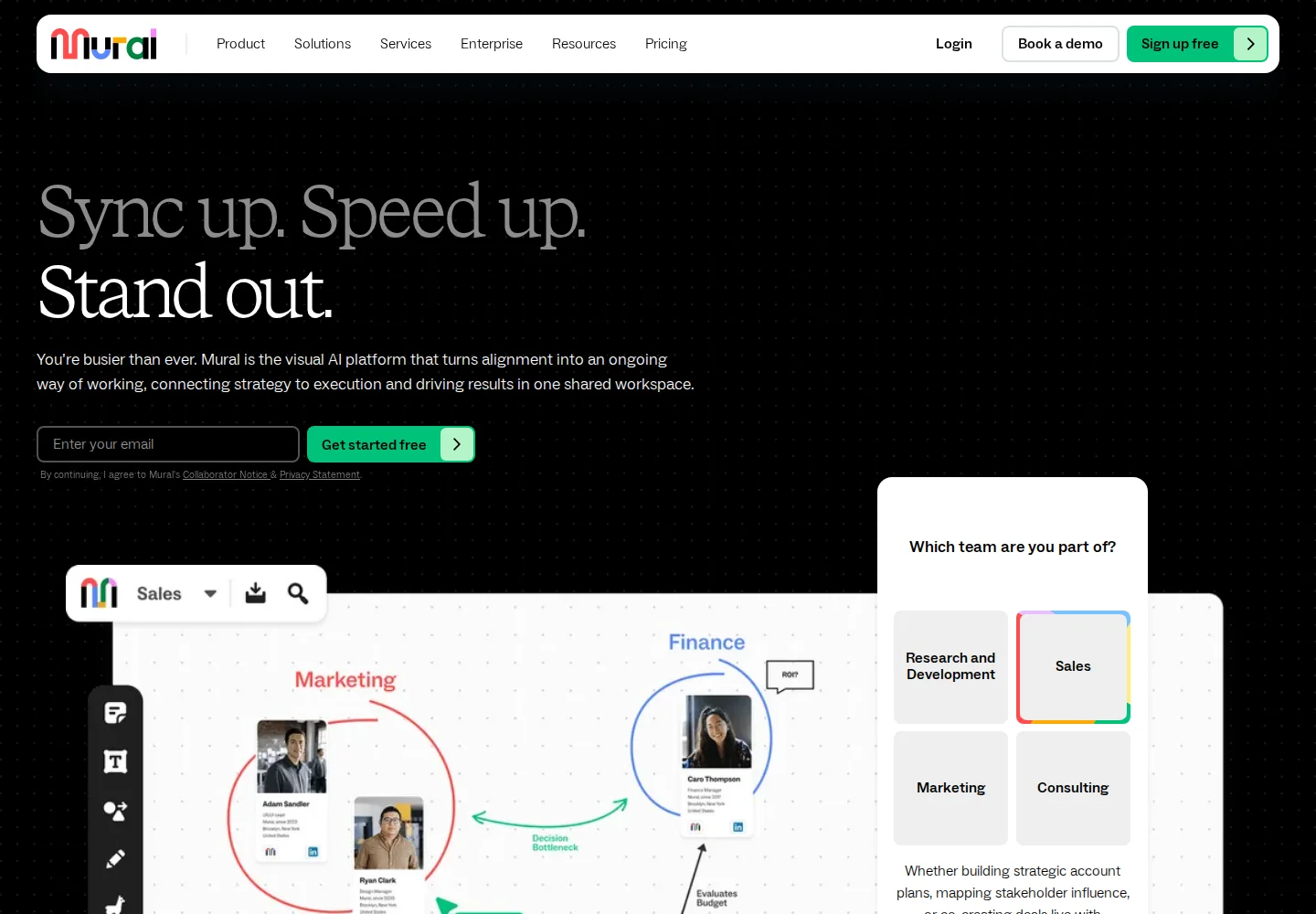
The Mural landing page, captured September 22, 2026.
What to evaluate: Whether the proposed groups and summaries help people review the original contributions. Keep those contributions accessible rather than treating a condensed summary as the only record of the session.
Pricing: Mural lists AI access on Team+, Business, and Enterprise plans. Check both your plan and workspace settings.
5. Heptabase — work through the research behind a project

Heptabase belongs here for the research stage. It combines cards and whiteboards with tools for understanding sources, taking notes, and developing a knowledge base. Its AI features include source explanations and an AI Tutor. Heptabase overview.
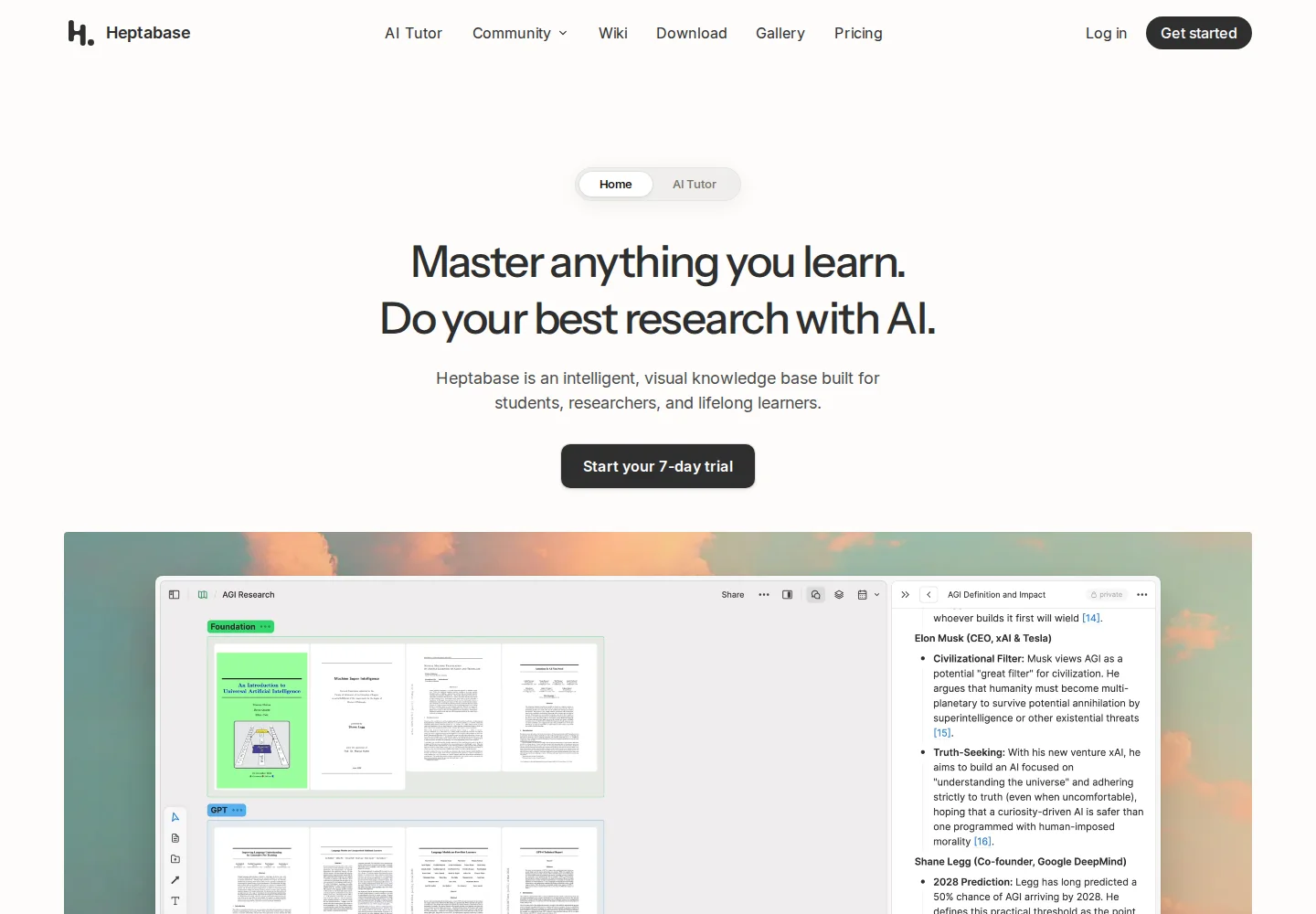
The Heptabase landing page, captured September 22, 2026.
For a creative project, the fit might be investigating a subject before writing a script or developing a brief. It is a different stage from composing the final artwork.
Pricing: Pro, Premium, and Premium+ have different AI allowances. Review the official subscription comparison, including what happens when credits run out.
How to compare AI canvas tools without a vague score
Ask each shortlisted tool to do one task you regularly face. Use the same source material where possible, and keep the expected outcome specific: three image directions, a usable workshop outline, or a summary you can check against the original notes.
Look at the work left afterward. Did you need to correct the content? Could you edit the output? Did you have to move it into another app before it became useful? Include those steps when deciding whether the tool saves you time.
Frequently asked questions
What is an AI canvas tool?
An AI canvas combines a spatial workspace with AI-assisted tasks. Depending on the product, those tasks might include making images, generating diagrams, organizing notes, or explaining research. The canvas label alone does not tell you which capabilities are available.
Which AI canvas is best for creating visuals?
We recommend Quickmake for projects that combine image, video, and copy generation with layout work. If your main task is organizing a team's ideas or understanding research, the other tools in this list may be a closer fit. Compare the specific output you need.
Do AI canvas tools read everything on a board?
Do not assume they do. The context available to an AI feature can depend on the action, selected material, supported content types, and product settings. Check the documented workflow and verify the result against your source material. A claim about one feature should not be generalized to every AI action in the app.
Can I use an AI whiteboard for brainstorming?
Yes. FigJam documents template generation and sticky-note organization; Mural documents mind mapping and clustering; Miro offers generation and AI workflows. These features can help prepare or review a session. Leave room for participants to challenge the suggested categories and add ideas of their own.
Are AI features included in free canvas plans?
Sometimes, but a free canvas does not guarantee unlimited AI use. Access may depend on a seat, subscription, trial, or credit allowance. Follow the pricing links for the task you want to use, particularly for image and video generation.
Can an AI canvas replace a design editor?
Only if it provides the editing tools your deliverable needs. A generated image is not the same as a layout with editable text and separate objects. Check typography, layers, frames, and export options as well as the generation itself.
About this guide: We make Quickmake, which is included in this list. Recommendations are based on official product information reviewed on September 22, 2026, rather than hands-on testing of every tool. Screenshot captions link to the pages shown.