

Tools Image UpscalerUpscale your images.
Upscale your images.
Bring out the details.
Turn small images into larger visuals with AI. Upscale product photos, generated images, and campaign assets, then put them to work in your next design.
or drop your image here
JPG, PNG, WebP · Up to 10 MB
Sign in to upscale · AI credits required
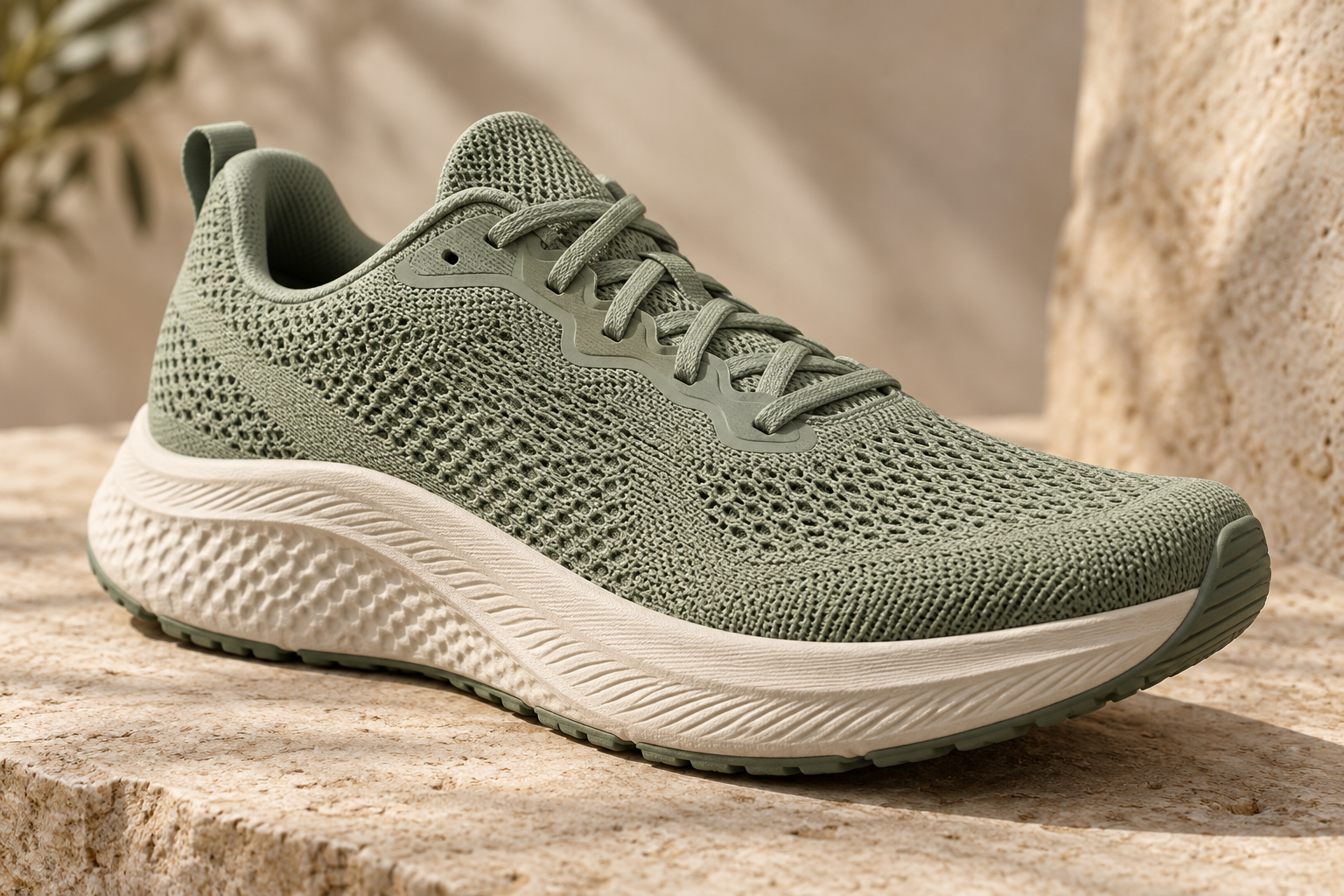
Drag to compare
How to upscale an image with AI
- 01
Choose the image
Upload a JPG, PNG, or WebP image. Start with a product photo, an AI-generated visual, or an image you want to use at a larger size.
- 02
Run the upscaler
Choose 2× or 4× enlargement in the upscaler, then run it with AI. Compare the result with your original and check the fine details.
- 03
Put the result to work
Download the result for your store, social posts, or next campaign. Bring it onto your canvas to build a complete design.
A few things to know.
Yes. Upload or drop your image above to open the upscaler. Sign in to process it; your selected image carries over. Choose your enlargement and review the credit cost before running the tool.
The example uses an AI-generated image with a softened before view to illustrate the difference in detail. It is not a result from Quickmake’s upscaler. Your results depend on the source image and selected settings.
No. AI can add or change details as it enlarges an image. Check textures, faces, lettering, and product details against your original before using the result.
Upload JPG, PNG, or WebP files up to 10 MB. You can use your own photos or images you have generated with AI.
Upscaling requires sign-in and AI credits. The tool shows the credit cost for your selected settings before you process an image. See Pricing for plans and included credits.
Small image. Bigger possibilities.
Give your photos more room in your next listing, layout, or campaign.
Upload image