

Tools Background Remover
Remove image backgrounds with AI.
Isolate your subject, then combine it with backgrounds, text, and design elements in Quickmake.
or drop your image here
JPG, PNG, WebP · Up to 10 MB
Sign in to remove backgrounds · 4 credits per image
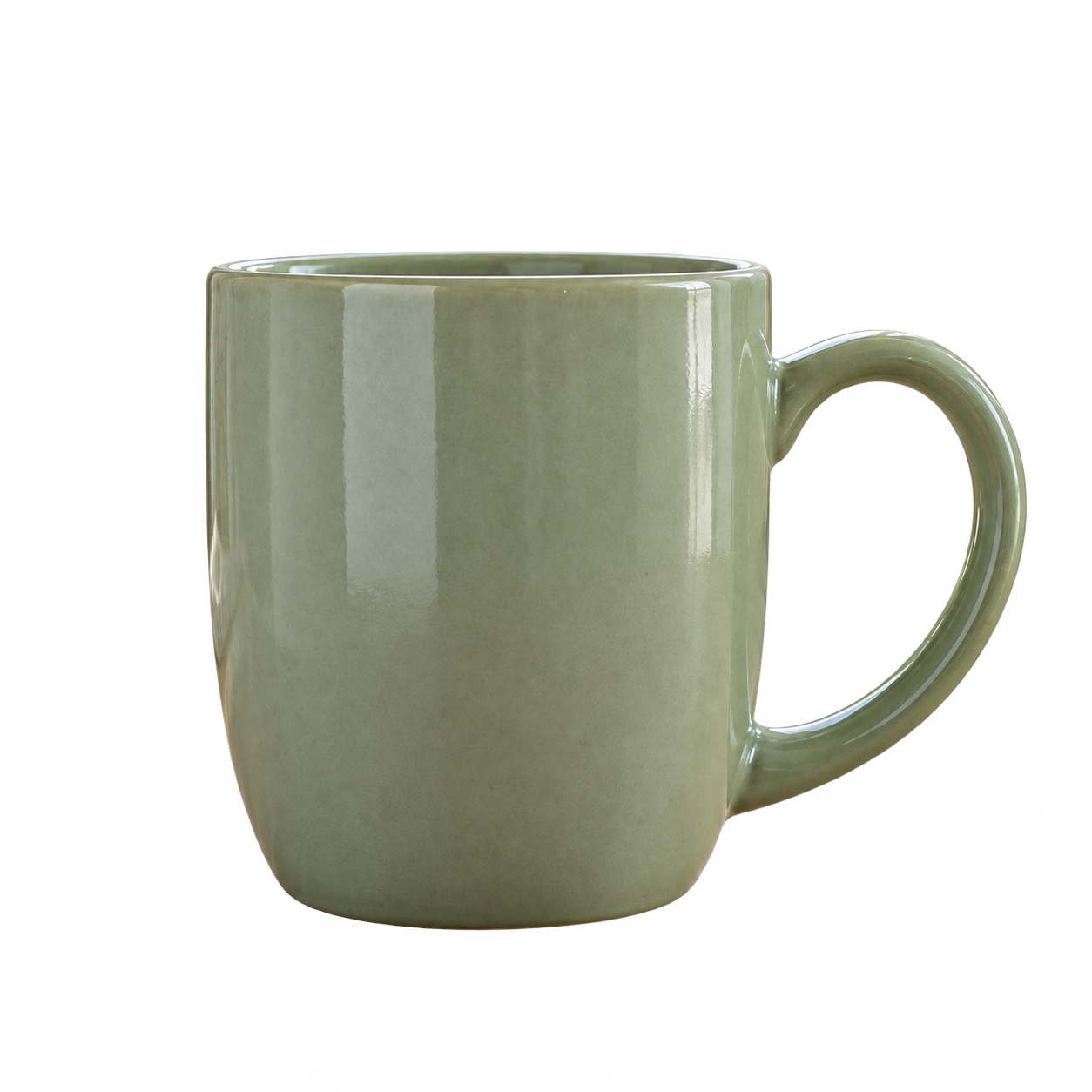

How to remove background from picture
- 01
Bring in your image
Upload a photo or select an image already on your canvas. Start with the product or subject you want to use.
- 02
Remove the background
Run background removal from the image tools. Review the result, especially around fine edges and transparent details.
- 03
Create a new composition
Arrange the result with a background, typography, and other design elements to make a product visual or promotion.
A few things to know.
The examples on this page are AI-generated illustrations of the workflow, not results from Quickmake. Upload or drop your image above to open the background-removal tool. Sign in to process it; your selected image carries over.
Zoom in around hair, fine edges, and transparent details. Results depend on your source image, so review the subject before placing it in your design.
Yes. Upload your product photo, select it on the canvas, and use the background removal tool.
Background removal requires sign-in and costs 4 credits per image. You can explore the editor before signing in. See Pricing for plans and included credits.
Your subject. A whole new setting.
Open the editor, bring in your image, and make it part of your next design.
Upload image